Razer PC Remote Play broadcasts the games you install on your computer in order to play them on a phone, tablet, laptop, or another Windows device somewhere else. The stream is not provided by some cloud services, such as GeForce Now or Xbox Cloud, but by your personal device — the graphics card, CPU, and SSD run the game, and the other device just displays the video and sends your inputs.
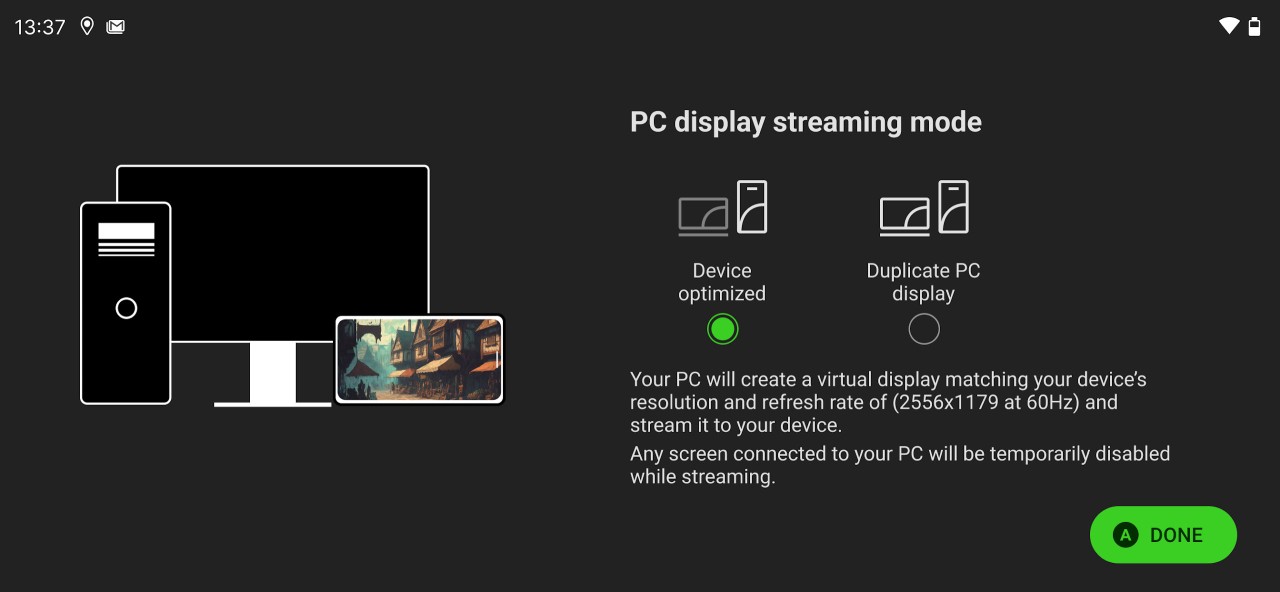
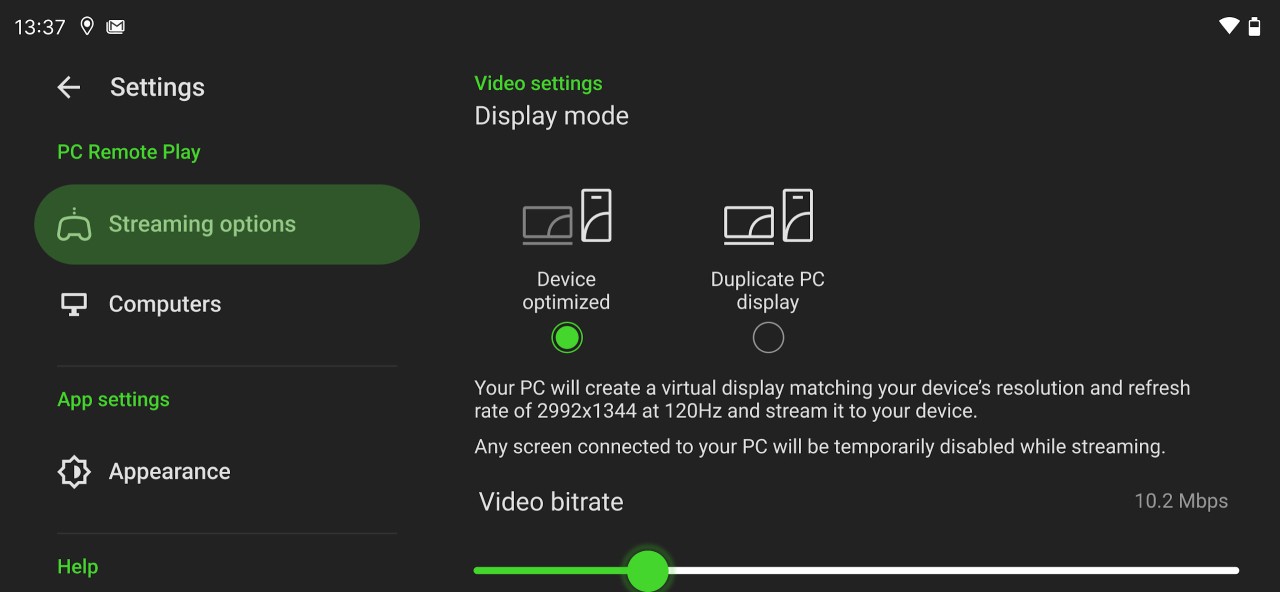
The idea is quite straightforward: you play the game on your PC, the visuals are shown on your mobile display, and you play it with a Razer Kishi controller, keyboard, and mouse, or anything that can be used on the device. The app will tune the stream to the screen resolution and refresh rate; therefore, you will not see an aspect ratio that is not correct. You always receive the finest the hardware can offer.
It is used by people to play without carrying a laptop, be it on the couch, bed, on a hotel wifi, or a balcony with the mighty PC still inside. It provides remote access and has a low setup.
What Are the Key Features of Razer PC Remote Play?
Razer put numerous thoughts into a single application. The primary advantage is that it automatically tries to adjust to the full resolution and refresh rate of the device; a phone with 144 Hz support will attempt to follow suit. The pairing procedure is easy: sign in to your Razer ID on both PC and mobile app (Razer Cortex + Razer Nexus), or pair with a pin in case you do not wish to create an account. None of the long authentication processes.
One of them is controller integration. The application is designed to work with Razer Kishi controllers, in particular, the V3 and Ultra. They have haptic feedback, making the controller shake with the gameplay, which makes it more like a console than most remote play applications, which are usually based on on-screen controls.
You are able to add games to Steam, Epic, Game Pass, or any other launcher. In Razer+ Cortex on PC, there is the Remote Play option that allows you to start, stream, record, or otherwise operate the game using your mobile phone. It is like a convenience gadget as opposed to a performance booster.
Is Razer PC Remote Play Free to Use?
Yes, it is free of charge. It does not have any subscription fee or any hidden costs in order to stream. Nonetheless, to enjoy it the most, namely, when using haptics and ergonomics, you are likely to use a Razer Kishi or any other compatible Razer. The optional equipment may be costly, and yet the basic app itself is free, and there is no additional functionality under a monthly arrangement.
Which Platforms Support Razer PC Remote Play?
The host PC should have Windows 11 (version 23H2 or later). The handheld or mobile phone should have iOS 18 or Android 12 or above. These are more rigorous than other competitors, and as such, they might not be compatible with older phones or PCs.
The handheld works with Razer Kishi controllers or any gamepad-compatible phone over Bluetooth or USB. It is also capable of streaming to one more Windows 11 laptop or handheld PC, either a ROG Ally or a Lenovo Legion Go.
In the first pairing, the mobile device and the PC have to share the same network. Then you can stream through various networks, such as cellular, as long as the router is either UPNP enabled or enabled to port forward. At least 30 Mbps is recommended to stream without any issues to Razer. Poor Wi-Fi will naturally result in poor performance.
What Are the Best Alternatives to Razer PC Remote Play?
PS Remote Play, by Sony, allows streaming PlayStation games (PS4 or PS5) to smartphones, tablets, PCs, or a second PlayStation. The game is not on the cloud but directly on the console. A powerful connection of about 15Mbps is recommended to ensure reliable output by Sony. Only those games that are owned on the console can be streamed by PS Remote Play, not PC games. Other geographic areas and game titles forbid remote play because of licensing.
There are two choices in Microsoft’s Xbox. Xbox Remote Play is a streaming console, similar to PS Remote Play. Xbox Cloud Gaming (included with Game Pass Ultimate) is streaming off the servers of Microsoft; therefore, it does not require a powerful home upload. The trade-off is more of a limited library of Game Pass titles, and not every game is available in cloud streaming. Xbox Remote Play usually performs well on touch devices, although this is dependent on the speed of the network.
Amazon Luna is a cloud-based gaming platform that is similar to NVIDIA GeForce Now and Xbox Cloud. Games are performed on Amazon servers. The service does not need any local hardware other than a good internet connection. Luna operates through channels, and hence you subscribe to particular game collections (e.g., Ubisoft, Luna+). It can be played on a user who does not have a strong PC but still enjoys modern games, though once you lose a game in a channel, you lose access. Luna is not designed to play your already-owned Steam games, unless the game is included in the subscription.