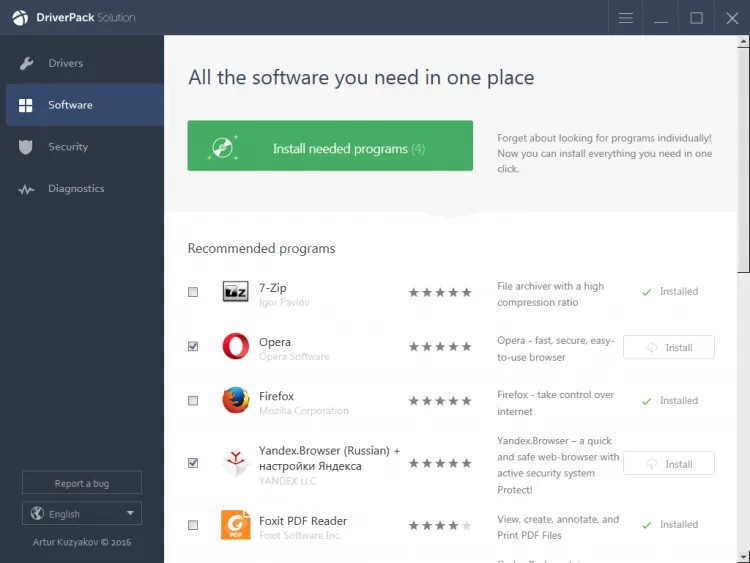
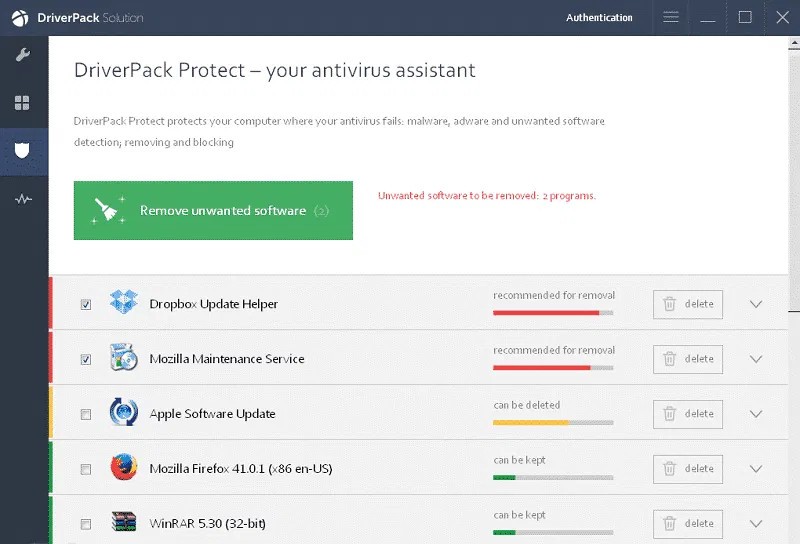
DriverPack Solution is an easy-to-install utility that helps Windows computers install and update drivers. Drivers handle communications between software and hardware, and they stop working properly when they go missing or fall out of date. DriverPack scans your computer, identifies connected hardware, and checks it against a large online database of drivers. Created by Artur Kuzyakov, it started as a small project and grew into a widely used tool, especially for users who need to install or reinstall Windows or manage several machines at once.
Where DriverPack really stands out is automation. New users do not need any technical knowledge to get started. The software scans your system, identifies missing or faulty drivers, and suggests replacements through a guided, user-friendly interface. It works well for non-technical users who want a quick fix, and also for technicians looking to save time during bulk installations.
Over the years, the database has grown to cover almost every common hardware category, including network cards, Bluetooth adapters, webcams, printers, chipsets, sound cards, Wi-Fi devices, video cards, and more. That broad coverage removes the need to visit individual manufacturer websites for each component.
What Are the Key Features of DriverPack Solution?
One of the most useful qualities is the sheer size of its driver database, which contains millions of entries from a wide range of manufacturers. DriverPack uses machine learning to identify the most compatible version for your hardware, reducing the risk of installation failures.
Automation is another major strength. Reinstalling drivers on a freshly formatted PC can be tedious, so DriverPack bundles the entire process into a single workflow. After you open it, the tool verifies everything and presents available updates, letting you install them all at once or pick and choose. File delivery is fast because the drivers are hosted on global servers.
Different modes serve different needs. The online version is lightweight and only downloads the specific drivers your system requires. The offline version is a single large package, which is ideal when the target computer has no internet connection. A network-focused version prioritizes network drivers so you can get online quickly and handle the rest from there.
DriverPack partners with antivirus vendors and runs file verification to prevent installation of dangerous or modified drivers. The software also includes support for older hardware and outdated Windows versions where finding current drivers in newer ecosystems can be difficult. It aims to deliver fast, predictable configuration, even for users who rarely touch system settings.
Is DriverPack Solution Free to Use?
Yes, DriverPack can be downloaded, used for scanning, and installed at no charge. The installation process may include optional recommendations or bundled programs, but the core driver functionality does not require a subscription. Users can turn off those additional suggestions, and the main feature set is free without restrictions.
Which Platforms Support DriverPack Solution?
DriverPack is available only on Windows and works with Windows XP, Windows 7, Windows 10, and Windows 11. It maintains broad compatibility with older hardware and operating systems that manufacturers may no longer actively support.
There is no official version for macOS, Linux, or Chrome OS. Because the tool is built around the Windows driver model, porting it to other platforms is impractical. Users on other systems will need to rely on the driver management built into their operating system.
The software works with desktops, laptops, and other Windows devices, as long as the hardware supports standard driver packages. Some users keep the offline version on a USB drive so they can troubleshoot or rebuild multiple PCs without re-downloading drivers each time.
What Are the Best Alternatives to DriverPack Solution?
Snappy Driver Installer (SDI) is a close competitor that delivers accuracy through a lean interface. It is portable, meaning it does not require installation, and includes large driver indexes that can be downloaded for offline use. SDI lets users choose exactly which drivers to enable, a feature that appeals to technicians who prefer a clean interface without advertising. Its open-source nature helps keep it popular among advanced users. Many users download SDI when they need a reliable offline option that runs without installation.
DriversCloud takes a web-based approach with a hybrid model. After installing a small scanner, you receive a detailed report in your browser showing the version of each driver, every installed component, and your system specifications. Users can then download suggested drivers from the site. DriversCloud also provides temperature, memory, and performance data about your hardware, which can be useful during diagnostics. It does not offer mass installation, but it delivers transparency and thorough breakdowns for both newer and older Windows systems. Most people download the individual driver files from DriversCloud after reviewing the detailed reports.
Driver Genius focuses on updating, backing up, and restoring drivers. It scans for outdated drivers and gives you the option to update them individually or in batches. One standout feature is the ability to create driver backups, which is helpful when planning a Windows reinstallation or transferring between systems. Driver Genius also includes system cleanup tools and basic diagnostics. It is not entirely free; some advanced features require a paid license. Its polished interface may appeal to users who want a more refined layout, though the underlying update process is similar to other tools in this category. Many users download Driver Genius for its backup feature when planning a system reinstall or upgrade.