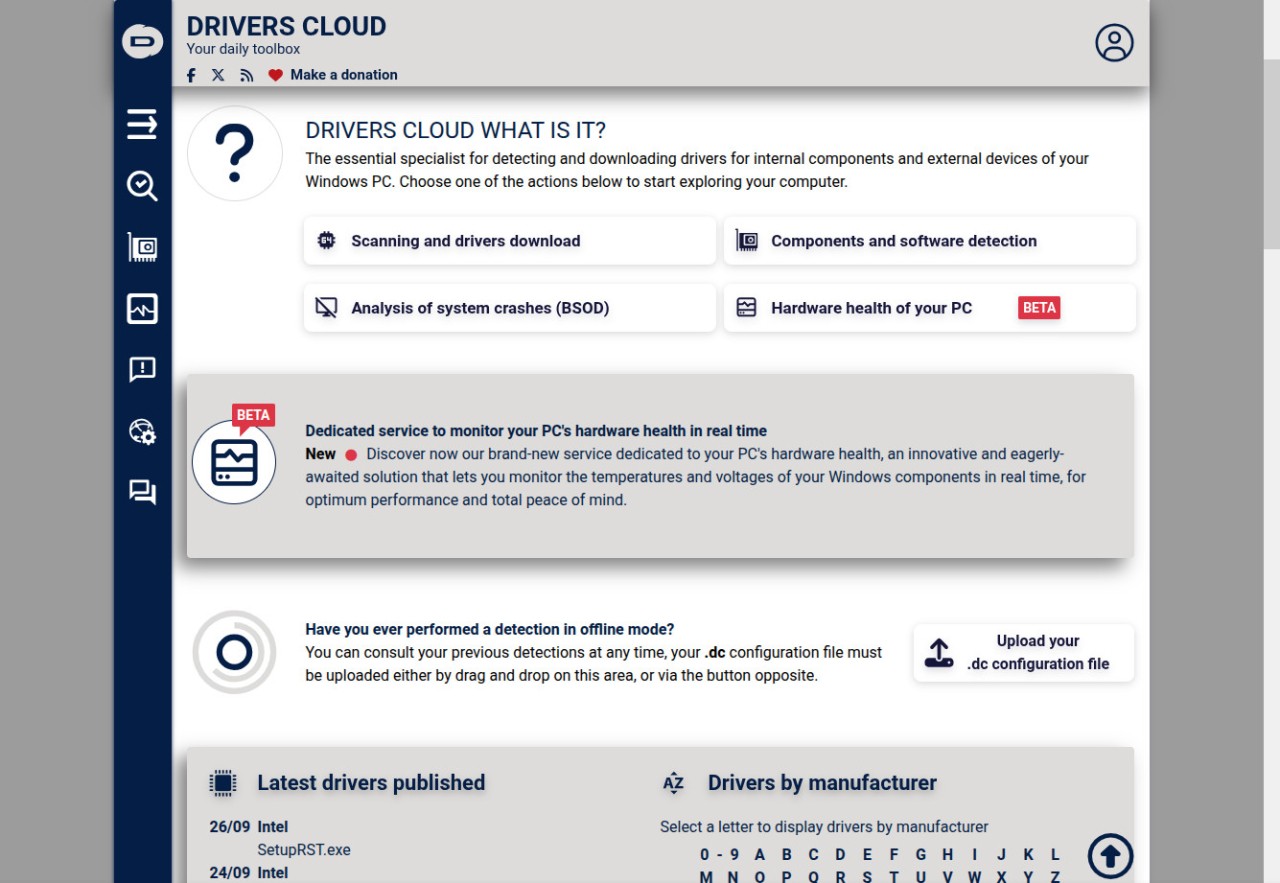
DriversCloud is meant for people who wish to keep their system stable and current without unnecessarily complicated processes. It guides you through identifying your computer’s hardware components, finding the appropriate drivers, and monitoring your system’s overall health. All of this can be done without the need for advanced technical skills or complex procedures. The software emphasizes clear information, providing an easy-to-read overview of the detected components and recommendations tailored to each Windows configuration.
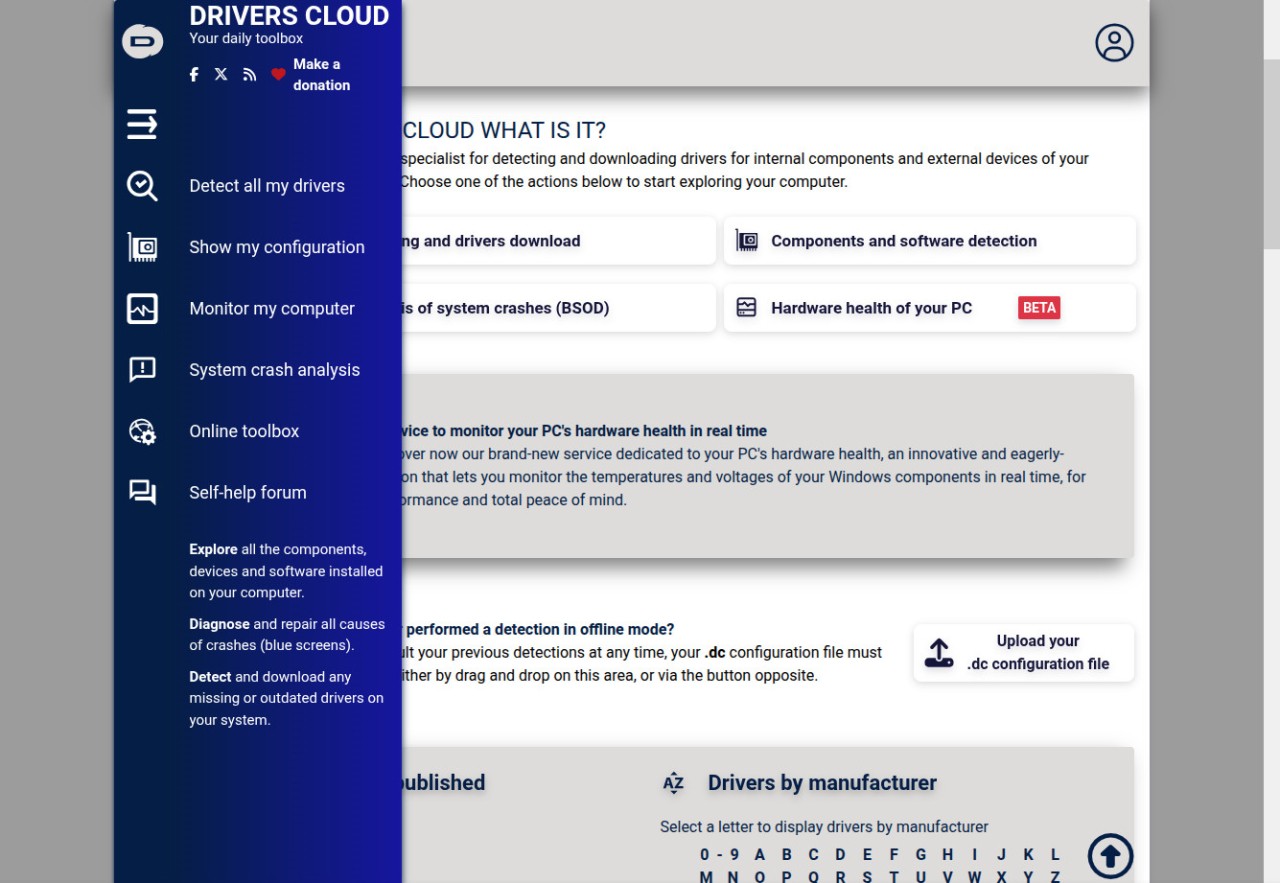
Along with a lightweight local agent that installs fast, the program boasts a neat, simple web interface. Whether it's a driver update, a persistent blue screen, or just a check of CPU temperatures, its modular approach lets you precisely identify what you wish to check or fix. Everything is controlled from a web browser, which offers simple access to important capabilities. After installation, the DriversCloud agent runs subtly in the background without any obvious effect on computer performance and needs no complicated manual configuration.
What Are the Key Features of DriversCloud?
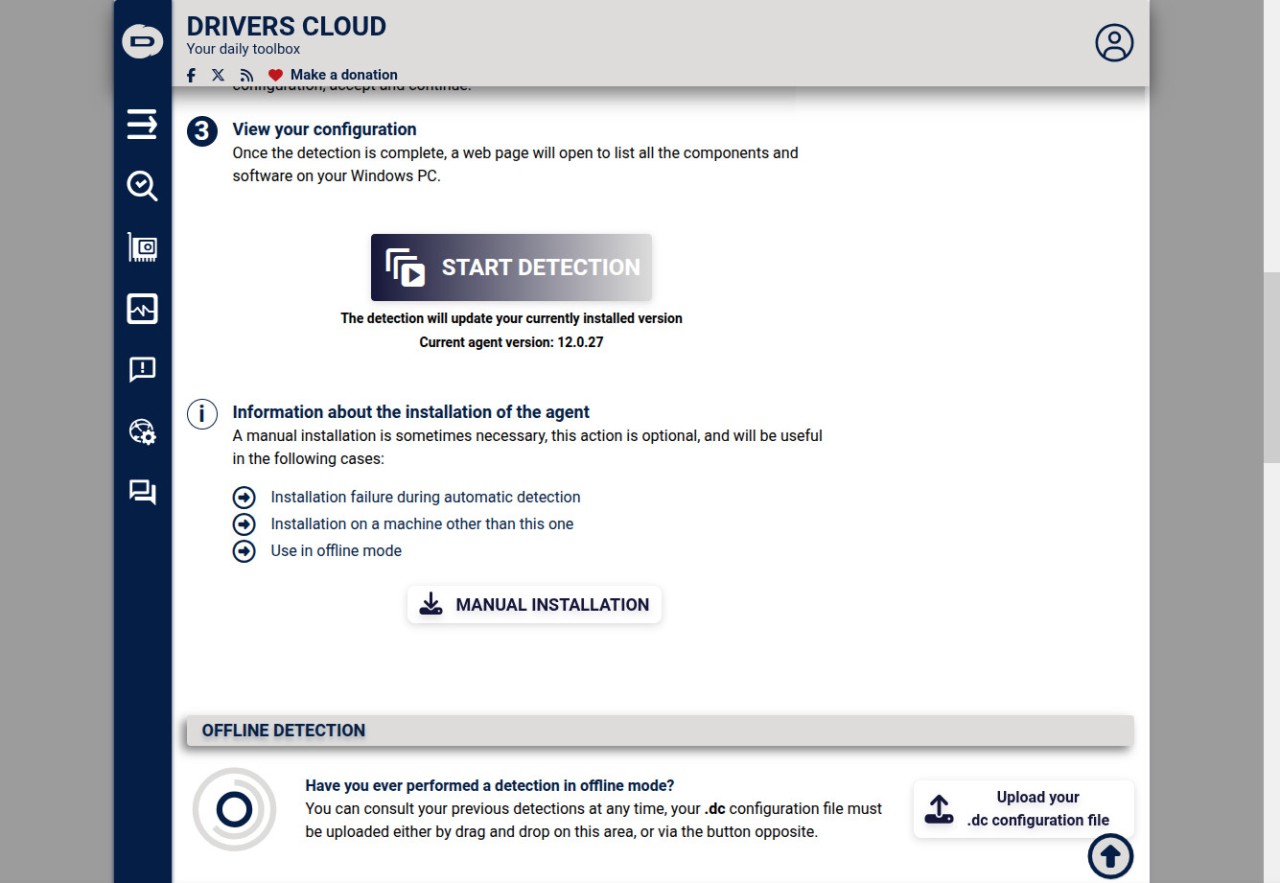
DriversCloud scans your computer to detect hardware components (such as the processor, graphics card, motherboard, etc.) as well as any drivers already installed. This step requires the installation of a local agent, which will perform a thorough scan of your system to generate a detailed report. Once the scan is complete, all data will be automatically centralized on a web interface, accessible directly through your web browser. The scan also covers connected devices, driver versions, system architecture (32-bit or 64-bit), and the overall status of the Windows configuration.
Based on an internally maintained database, DriversCloud recommends the most recent drivers after the data has been gathered. You can view the recommended drivers, uncheck the ones you’re not interested in, and then start the download with a single click. The system is designed to avoid any confusion: you only see what’s relevant to your system configuration. DriversCloud also lets you create a “configuration signature”—a sort of technical ID for your machine—which you can share if you need remote assistance. This signature can be viewed online and greatly facilitates remote support, particularly on forums or among technicians.
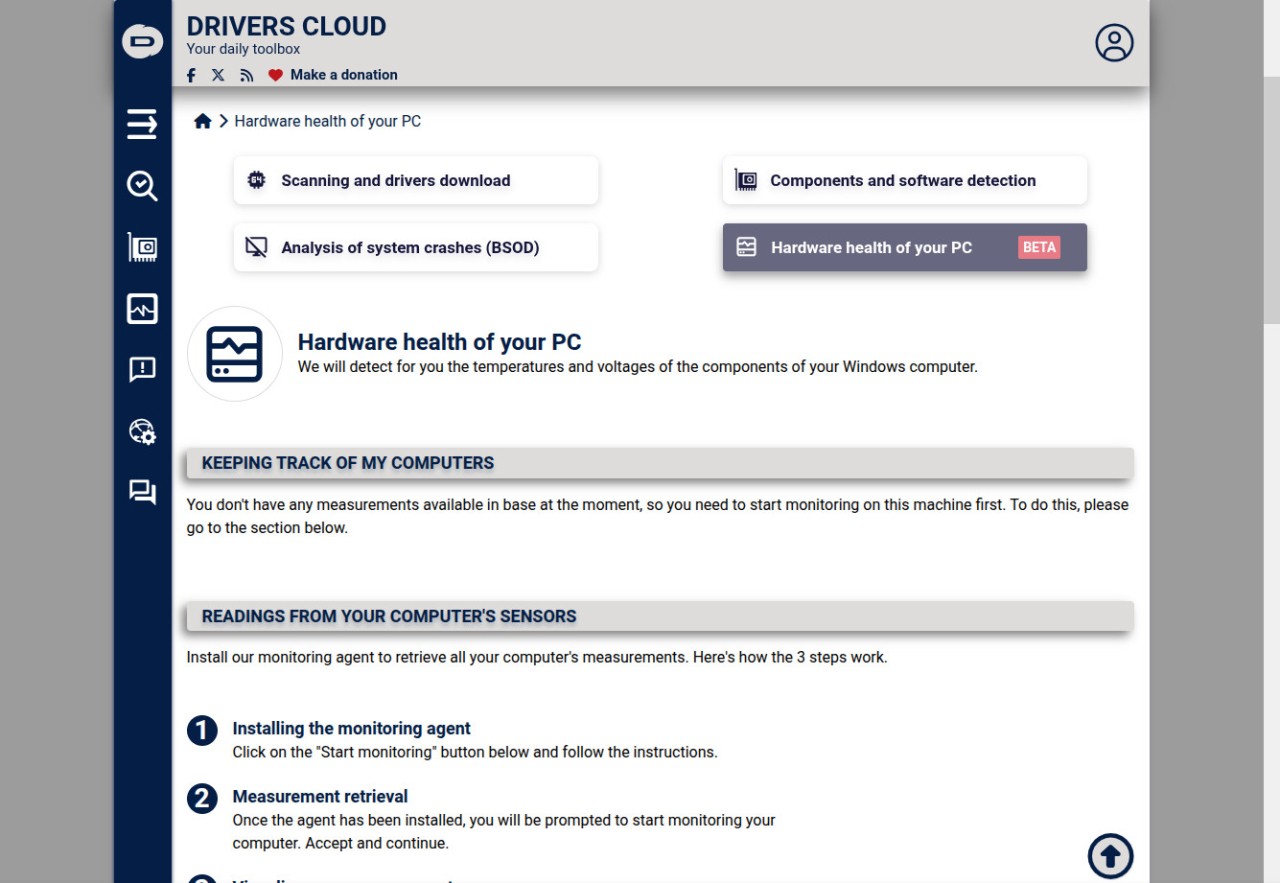
There's more to DriversCloud than just driver updates. It includes a diagnostic module to analyze Blue Screen of Death (BSOD) errors using minidump files, as well as a hardware monitoring service that tracks the temperatures, voltages, and statuses of your components. If you encounter an issue, this can be a huge help in pinpointing the problem. The service also provides detailed information on system stability and any potential conflicts between drivers or hardware components.
Finally, DriversCloud also works in offline mode. You can run a scan on a PC that isn’t connected to the Internet, save a DC file containing all the information, and then upload it from another connected machine. This is a very convenient solution for working on computers without network access, which are often the most problematic. This offline mode is particularly useful for maintaining laptops, business computers, or isolated machines without Internet access.
Is DriversCloud Free to Use?
DriversCloud is completely free. No features are locked behind a subscription, and there is no paid version available. The service is funded by advertising, which appears primarily on the website. This means you have access to all features—including advanced ones like BSOD analysis, hardware monitoring, offline detection, and comprehensive driver updates—without paying a thing. There are no artificial limits on the number of detections or driver downloads.
Creating an account is optional. You can use DriversCloud with a temporary account, in which case your data is automatically deleted after 48 hours. This “disposable” mode allows you to test the service or perform a quick fix without leaving a trace. If you’d like to save your detection results, share them, or ask for help on the official forum, we recommend creating a free account—it’s quick and requires no commitment. The technical data collected is not personally identifiable and is used solely to improve the driver detection and recommendation service.
This model, which has no paywalls, makes DriversCloud particularly useful for one-time troubleshooting, remote support, or regular maintenance of multiple workstations. You can also reuse the installed agent at any time to run another scan and get a new set of recommendations, with no usage limits. It’s a tool often used alongside antivirus or security software to keep a Windows system stable and up to date.
Which Platforms Support DriversCloud?
DriversCloud was developed primarily for the Windows operating system. Its native agent runs in 64-bit mode (or 32-bit mode for older machines) and is compatible with all current versions of Windows, including Windows 11. It performs best on this system, particularly when it comes to driver detection and BSOD analysis. It supports both desktop computers and laptops, regardless of the version of Windows installed.
The interface allows you to access previous reports, or upload a configuration file from your operating system, as long as you’re using a recent web browser. This browser compatibility also lets you use DriversCloud from another computer to analyze a remote system.
From a technical standpoint, DriversCloud’s web interface is well-suited for standard screens, even though it isn’t designed for heavy mobile use. The agent, on the other hand, is strictly limited to Windows-based desktop or laptop computers. Installation can be done automatically or manually, depending on whether you’re working on a connected machine or not, with an easy-to-use detection interface. The installation process is quick and secure, with no integration of VPNs, third-party antivirus software, or unwanted programs.
What Are the Best Alternatives to DriversCloud?
There are several alternatives to DriversCloud for managing and updating drivers, but not all of them offer the same approach or the same range of features.
Driver Genius is a well-established software program designed exclusively for Windows. It works by scanning your system to identify outdated, missing, or corrupted drivers. The free version offers basic detection; however, to access advanced features (backup, restoration, and driver optimization), you’ll need to upgrade to the paid version. Its interface is fairly standard—sometimes a bit dated—but remains functional. It’s best suited for users who want an all-in-one tool with additional options but are willing to pay to take full advantage of it.
Driver Talent offers a more modern interface and also focuses on automatically scanning for, updating, and installing drivers. The free version handles the basic tasks, but if you want to do more—such as backing up or restoring drivers after a system update—you’ll need to upgrade to the paid version. Compatible only with Windows, it takes a straightforward, visual approach. It’s a bit easier to use than Driver Genius, but less comprehensive if you’re looking to delve into technical details.
Snappy Driver Installer (SDI) really stands out because it’s free, open source, and can be used both online and offline. It’s compatible with all versions of Windows (from XP to Windows 11) and doesn’t even require installation, making it an ideal tool to keep on a USB drive for on-the-fly troubleshooting. It gives you a lot of freedom: you choose which drivers to install, and you can create a system restore point before each operation. Its interface is more basic and less user-friendly, but it gets the job done. It’s a solid choice for those who want a powerful, no-frills tool without having to pay.