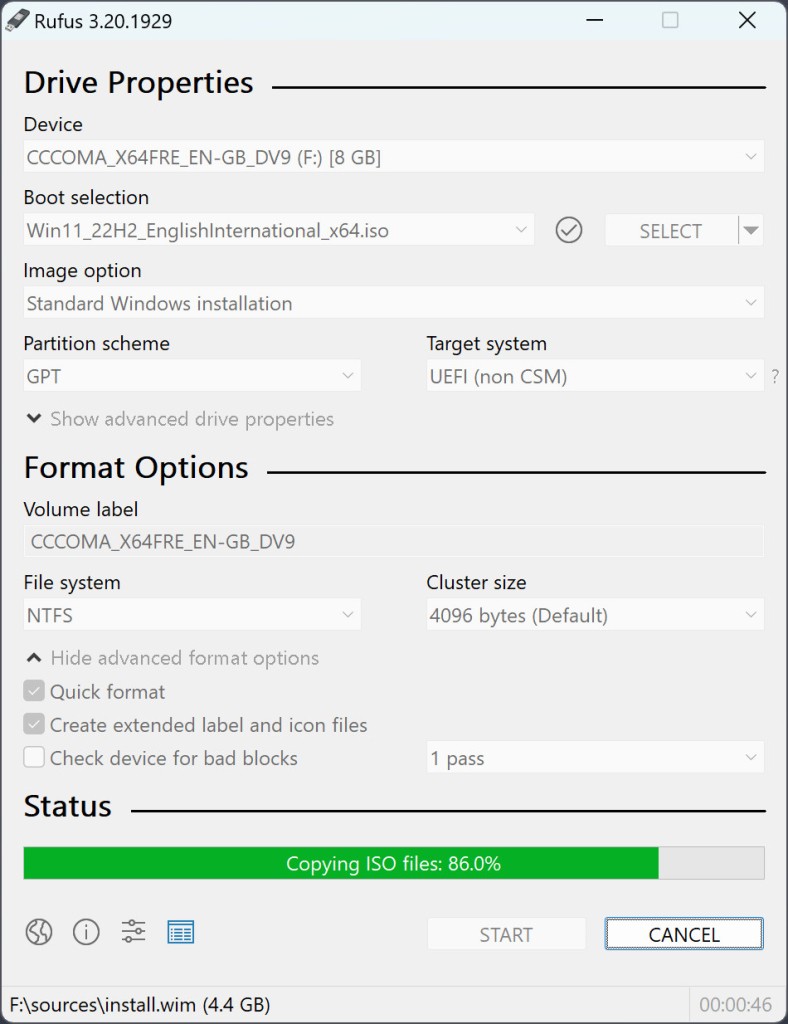
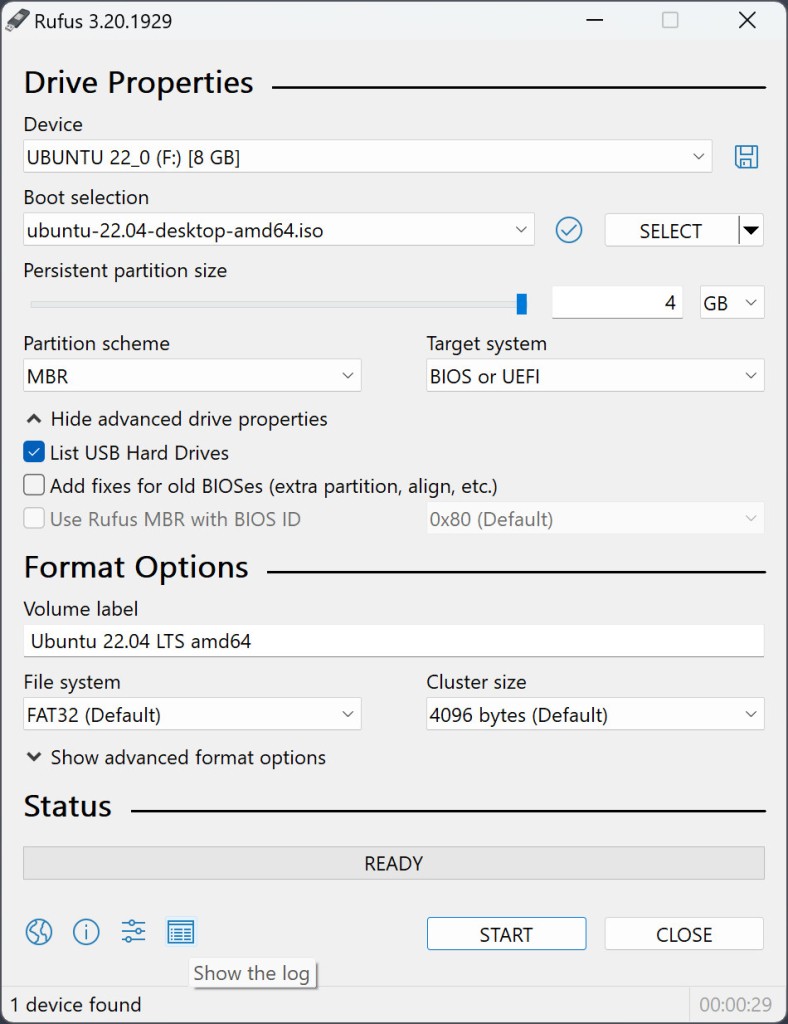
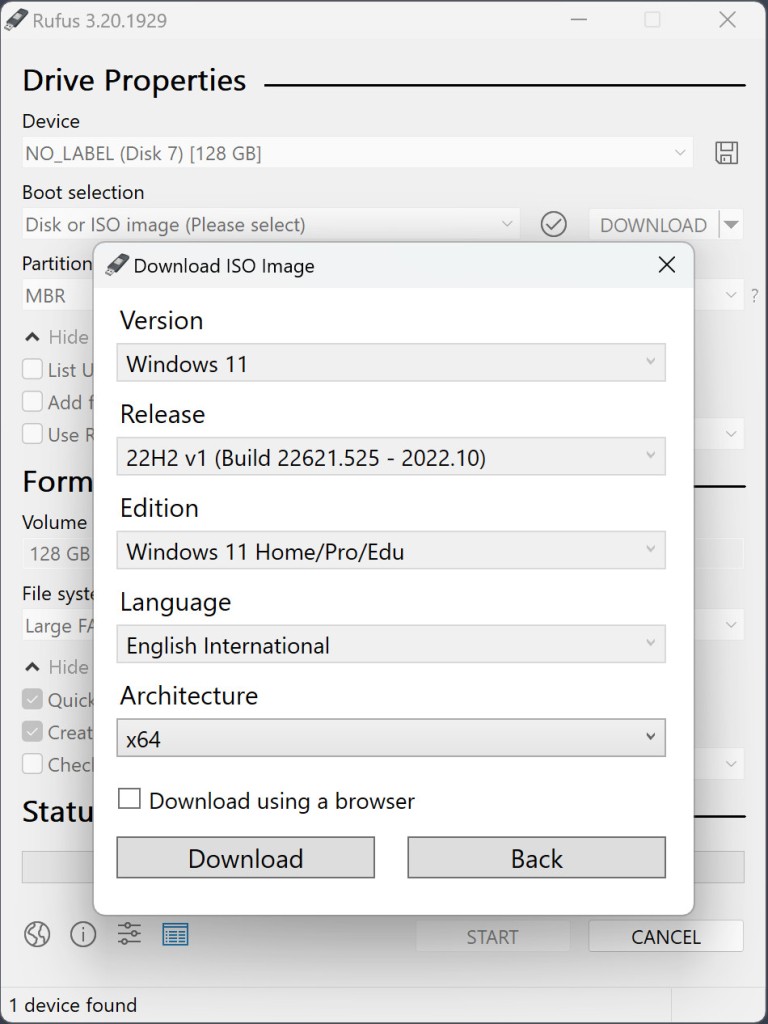
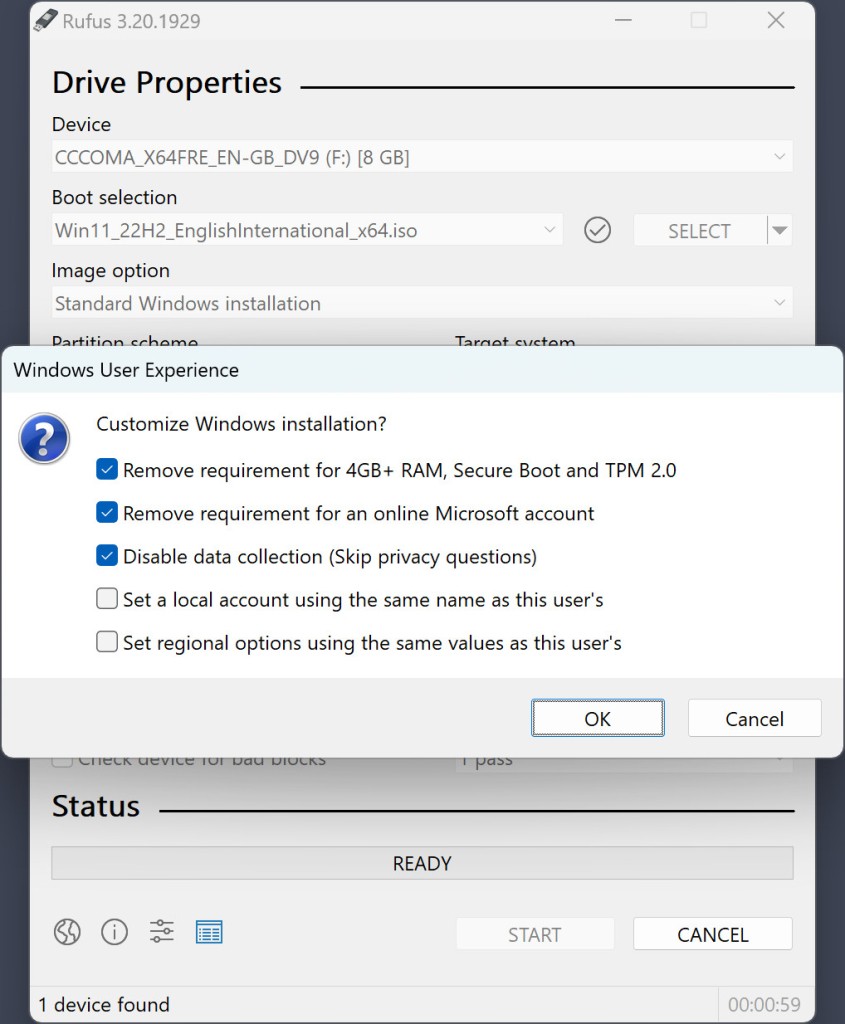
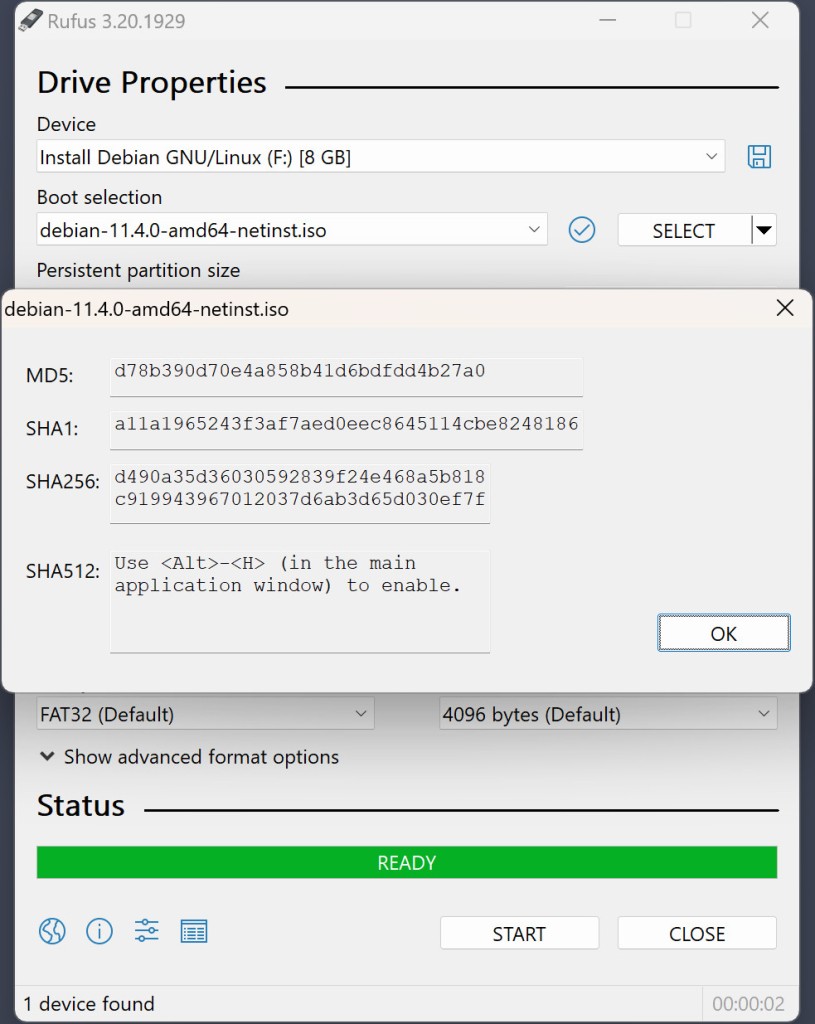
Rufus is a Windows utility for creating bootable USB drives. Many people turn to Rufus for Windows or Linux operating system installation, or if they need to install Windows 11 but their machine doesn’t meet all the system requirements. For example, with Rufus, you can install Windows 11 even if you don’t have at least 4 GB of RAM or TMP 2.0. You can also avoid having to create an online Microsoft account.
The application is quite lightweight, so it won’t drain your computer’s resources. You don’t even need to conduct a full installation to run it, as it functions as a portable app. Rufus can run quickly without any disruptions.
It works by turning ISO images into bootable USB drives. Rufus uses FAT32, exFAT, UDF, NTFS, and ReFS. To ensure a smooth installation process, the tool checks drives for errors.
What Are the Key Features of Rufus?
Rufus is a free Windows utility for turning ISO files into USB flash drives. Users like this tool because it operates quickly, can bypass Windows 11 restrictions, and supports different types of file systems.
Its core functionality is converting ISO images into bootable USB flash drives. When working with Windows 11, it can help you bypass certain restrictions, like a minimum of 4 GB of RAM and the Secure Boot requirement. You can also avoid having to create a Microsoft online account, as a local account is created automatically in the process. Rufus supports GPT and MBR partition schemes, making it a versatile solution.
The tool uses FAT32, exFAT, NTFS, ReFS, and UDF to format flash drives. Rufus will conduct a full flash drive check to make sure there are no errors, and the installation process goes smoothly.
A great advantage of the application is that it doesn’t need to undergo a full installation to run. As a result, it is also quite lightweight and doesn’t drain your computer resources.
Is Rufus Free to Use?
Yes, Rufus is a free tool. It is also open source, so anyone can find the code online to find out how the tool operates. You can use it free of charge as an individual or business. There are no advanced features hidden behind a paywall, and you don’t need to pay to remove ads.
Which Platforms Support Rufus?
Rufus is exclusively a Windows utility. It runs on Windows 8, 10, and 11. There is no native version of Rufus for Linux and macOS (see our alternatives to find something else).
What Are the Best Alternatives to Rufus?
While Rufus is an excellent solution for creating a bootable USB drive, other applications on the market fill the same niche.
Ventoy is another app for creating bootable USB flash drives, but the way it works is quite different from Rufus. With its help, your USB becomes a multi-boot drive that can work with multiple ISO files through its intuitive drag-and-drop interface. That also means that you can choose from multiple ISOs on a single flash drive, as opposed to Rufus, which only lets you work with one at a time. You also don’t need to rewrite the drive every time you want to install a new ISO. Instead, simply delete the file from the USB drive. At the same time, it is worth noting that Ventoy cannot bypass Windows restrictions the same way Rufus does without customization.
YUMI exFAT is a multi-boot tool, just like Ventoy. You can boot several ISO files at the same time. YUMI uses the exFAT system, which supports large ISOs over 4GB. With its help, you can store large Windows installers. Note that because its architecture is a bit more complex, it may take a longer time to set up, whereas Rufus can function without a full installation.
PowerISO is quite different from Rufus. It is a paid tool that is quite resource-heavy, unlike Rufus. Its main function is the creation and burning of disk images. You need to install the tool on your device to use all of its features. There are some free features, but most of them require payment. You will appreciate PowerISO if you need to edit or extract individual files from ISO files.