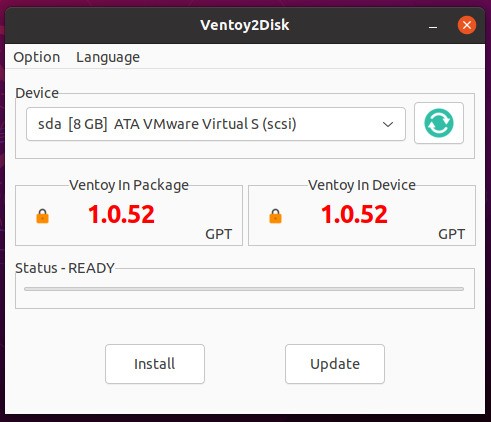
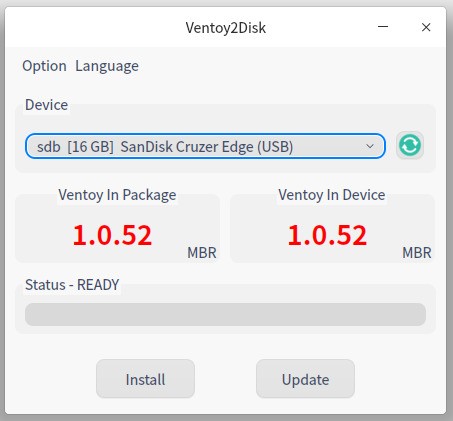
When you want to create a bootable USB drive, you have to format it, and then you are stuck with a bootable drive for the OS that’s on it. Ventoy is an open-source bootable USB creation tool that takes a different approach to most of its competitors. For example, instead of writing a single ISO image to a flash drive and reformatting every time you want to switch, Ventoy lets you install once and then simply copy ISO files onto the drive.
Each ISO file shows up in a boot menu automatically. Need to boot Windows 11 today and a Linux distro tomorrow? Just drop both ISOs on the same USB stick and pick which one you want at startup. And you can even store files and folders, as you would a normal USB drive!
That simplicity is what makes Ventoy stand out. Traditional tools like Etcher or Win32 Disk Imager overwrite your entire drive with one image, turning the USB into a clone of the source ISO. Ventoy works differently by creating a small hidden boot partition alongside a large exFAT storage partition. The boot partition handles the menu and bootloader, while the storage partition holds your ISO files and can still be used for regular file storage at the same time. In other words, you're not sacrificing a USB drive every time you need a bootable disk.
The format and OS support is broad. Ventoy handles ISO, WIM, IMG, VHD(x), and EFI files, and it works with Windows, Linux, ChromeOS, Unix, and various rescue and utility environments. Over 1,100 ISO files have been tested, covering the vast majority of distributions listed on DistroWatch. Both Legacy BIOS and UEFI booting are supported, including UEFI Secure Boot, and it works across x86, x86_64, ARM64, and MIPS64EL architectures. Whether you're setting up a workstation, recovering a crashed system, or testing different Linux distros, Ventoy handles the job without fuss.
What Are the Key Features of Ventoy?
The core appeal of Ventoy is its "install once, copy and boot" workflow. Run the Ventoy installer on your USB drive once, and you never need to format it again, you can even update the software easily. Adding a new bootable image is as simple as dragging an ISO file onto the drive. Removing one is just deleting the file. Every ISO on the drive appears in a boot menu at startup, and you select whichever one you need.
Multi-boot capability is where Ventoy really shines compared to single-image tools. You can load up a single USB stick with Windows installation media, multiple Linux distributions, antivirus rescue disks, disk cloning utilities, and diagnostic tools all at once. For IT professionals and tech enthusiasts who regularly work with different operating systems and recovery environments, this means you don’t need to carry around a drawer full of dedicated USB drives.
Ventoy also supports Linux persistence, which means you can save files and settings in a live Linux session and have them carry over the next time you boot. Windows auto-installation and Linux auto-installation are both supported through configuration files, and a plugin framework with a GUI configurator lets you customize themes, control boot behavior, and inject files into the runtime environment.
Upgrading Ventoy is simple. When a new version is released, you update the boot partition, and all your ISO files on the storage partition remain untouched. The tool also works beyond USB drives. You can install it on local disks, SSDs, NVMe drives, and SD cards.
Is Ventoy Free to Use?
Ventoy is completely free and open-source. The source code is publicly available on GitHub, and there are no paid tiers, no feature restrictions, and no ads in the desktop application.
The project is maintained through voluntary donations. Every feature is accessible to all users from the moment you download it, with no licensing requirements for personal or professional use.
Which Platforms Support Ventoy?
The Ventoy installer runs on Windows and Linux. On Windows, you use Ventoy2Disk.exe, giving you a straightforward GUI for selecting your USB drive and installing Ventoy. On Linux, you have both a shell script and a GTK/Qt-based GUI available.
Once installed, the bootable USB drive works with virtually any system you can boot from USB. Ventoy supports Legacy BIOS, IA32 UEFI, x86_64 UEFI, ARM64 UEFI, and MIPS64EL UEFI, covering an enormous range of hardware. macOS can be used to copy ISO files onto an already-prepared Ventoy drive, though the initial installation is best done from Windows or Linux.
What Are the Best Alternatives to Ventoy?
Rufus is one of the most widely used bootable USB tools available, and differs in that it's built for speed. Rufus creates bootable drives from ISO images faster than most competing tools, with a clean and focused interface. It supports both BIOS and UEFI systems, handles GPT and MBR partition schemes, and includes options to bypass Windows 11's TPM and Secure Boot requirements. Rufus can also download official Windows ISO images directly from Microsoft's servers. The key difference between Ventoy and Rufus is that Rufus writes one image per drive. If you normally work with a single OS and want the fastest possible write speed, Rufus is hard to beat.
YUMI exFAT is a multiboot USB creation tool that shares DNA with Ventoy, actually using Ventoy's bootloader under the hood. It creates a clean folder structure on your USB drive with a FAT32 boot partition and an exFAT storage partition, supporting ISO files larger than 4 GB. YUMI offers persistence support for live Linux sessions up to 40 GB and handles both BIOS and UEFI booting. Where YUMI differs from Ventoy is its Windows-based installer workflow, which walks you through the process of selecting and adding each ISO step by step. YUMI is a solid choice for those seeking multiboot capability with a more guided setup process.
PowerISO is more of an all-in-one disc and image management application than a dedicated USB boot tool, but it includes bootable USB creation as a core feature. Beyond writing ISOs to USB drives, PowerISO handles disc burning, ISO creation and editing, archive management, and virtual drive mounting. PowerISO can also install Windows directly to a USB drive. PowerISO runs on Windows, macOS, and Linux, though the full feature set requires a paid license after the trial period. If you need a single tool that covers disc imaging, burning, and USB boot creation in one package, PowerISO fills that role.