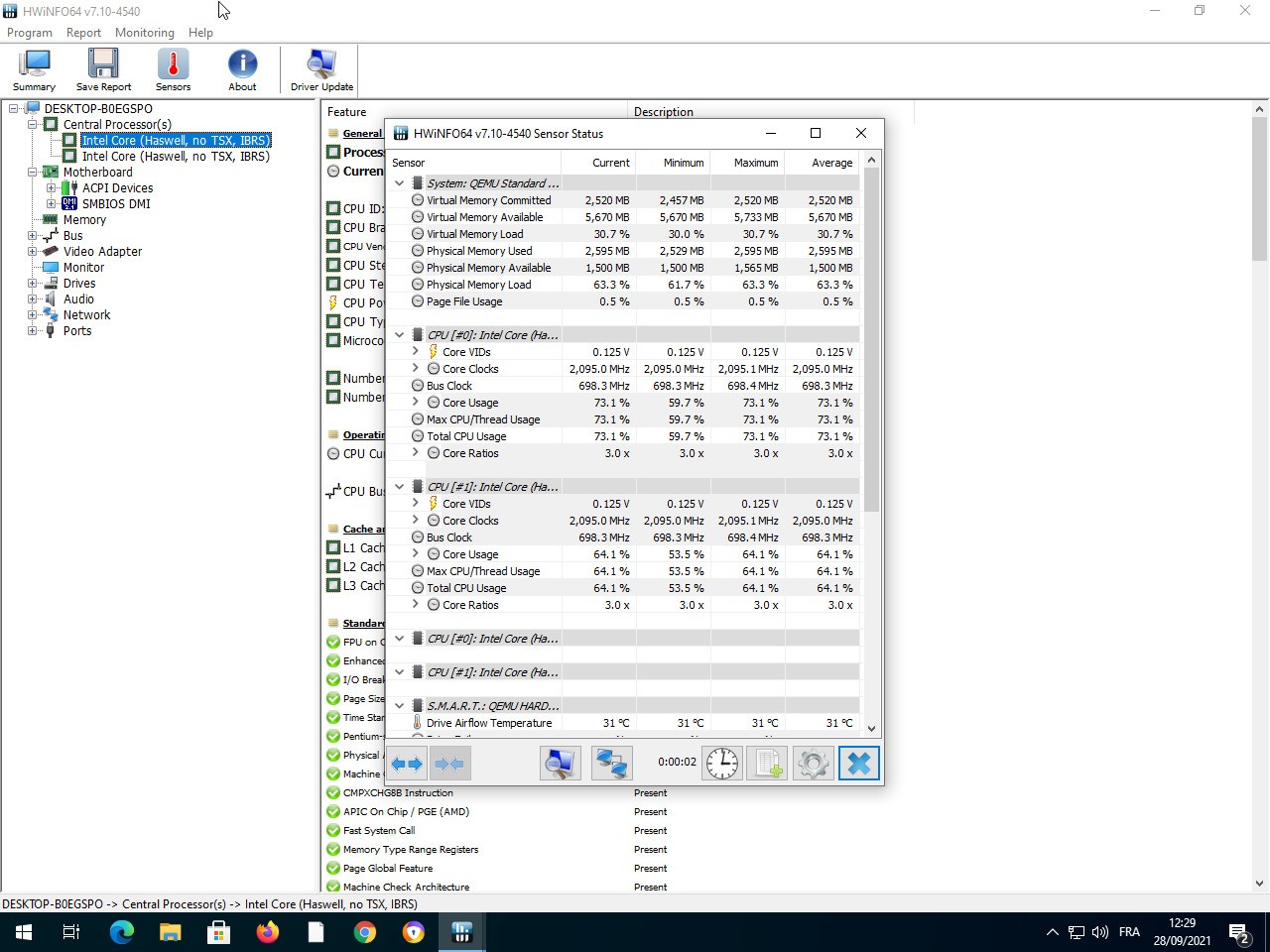
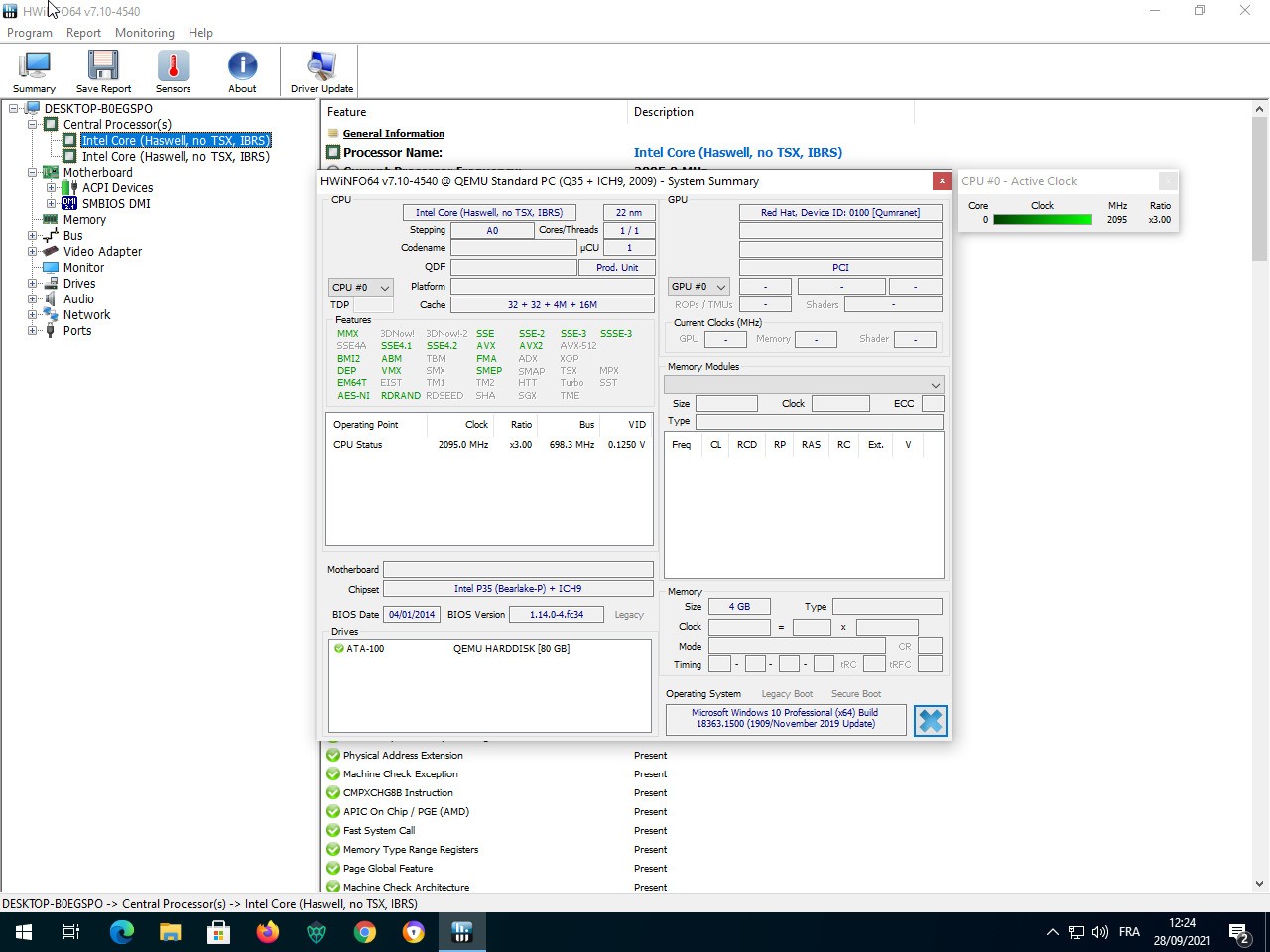
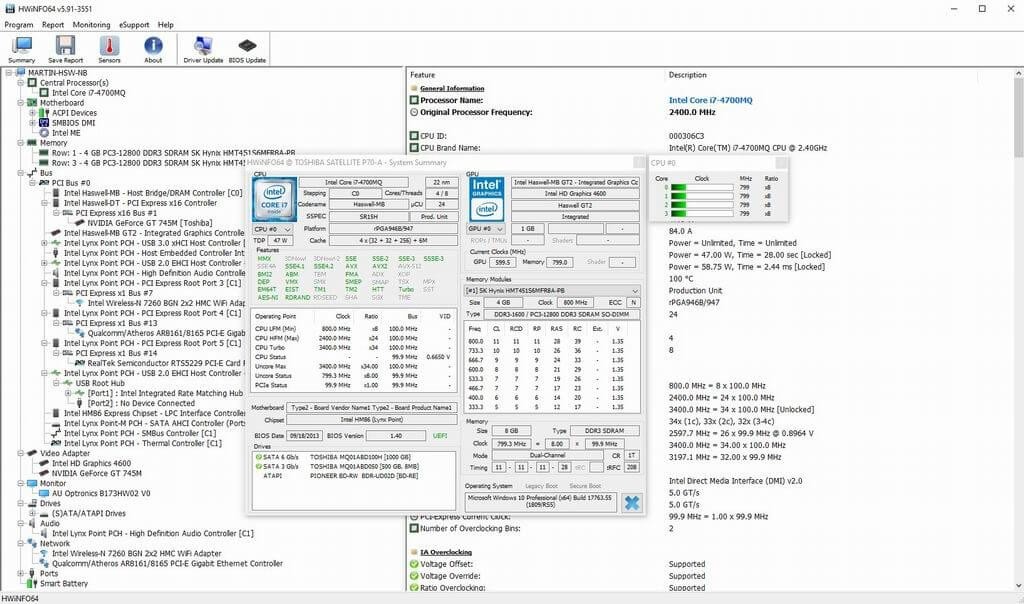
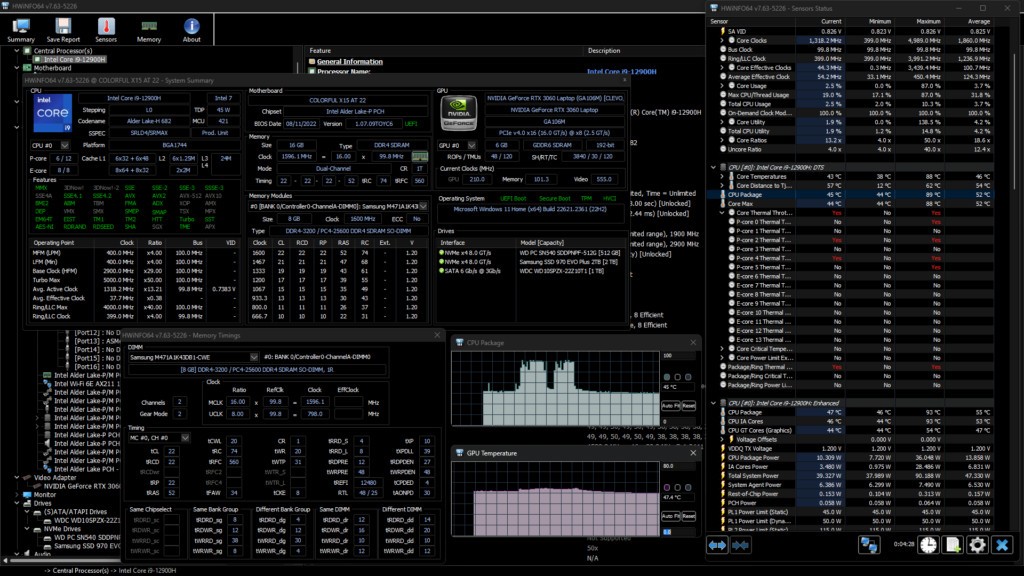
HWiNFO is system information and diagnostic software that can display the equipment within a personal computer and its functionality. It predominantly shows information about the processor, memory, motherboard, storage, graphics card, and other connected components. This software initially provides a brief overview of the system and then allows users to explore more in each type of hardware in case they require additional information.
The primary objective of HWiNFO is to assist people in learning the hardware configuration of their computer and monitoring the performance of the system. It can help in the troubleshooting of hardware issues, in determining compatibility issues, or even learning more about a PC. It is also applied in diagnostics and monitoring by professionals and organizations, particularly where it is very important to have a stable hardware environment.
HWiNFO is an old project that is dedicated entirely to hardware analysis. It is not an effort to clean, improve, or alter the system. Rather, it documents what exists and the manner in which it functions. Due to this specialization, it is very frequently used by technicians, system builders, and other advanced individuals. Even ordinary users can, of course, use it to find some basic information about the system when needing to seek it out.
What Are the Key Features of HWiNFO?
Detailed hardware information is one of the features of HWiNFO. It can locate the majority of internal parts very well, such as new processors and new system standards. The user can see the data, which includes CPU model, clock speeds, memory type, temperatures, and voltages, among other technical values that explain how the system operates.
System monitoring is another characteristic. HWiNFO monitors sensor data (temperature, fan speed, power consumption, etc.) in real time. This can assist users in seeing the behavior of their hardware when it is in a normal condition or in a load scenario. Behavior could indicate overheating or abnormal behavior by monitoring information.
HWiNFO should also have an option to report. When troubleshooting or recording system specifications, users are capable of preparing summaries of information on hardware that can be saved or shared. This can be applied in the support or system audit.
New hardware technologies and standards are supported by updating the software regularly. It is not based on the old hardware databases, which makes it still relevant with the release of new components. In general, its capabilities are aimed at the provision of information, visibility, and diagnostics, and are not directed at the modification of the system or optimization.
Is HWiNFO Free to Use?
HWiNFO can be downloaded free of charge for general users. The free version offers extensive system information and monitoring capabilities, which are sufficient for most day-to-day needs. Users can view hardware specifications and sensor information at no cost.
It also has paid or professional versions that are meant to be used at higher or commercial levels. Yet simple users do not need to worry about this, as they have the basic version, which offers no restrictions to learning about their system or hardware details.
Which Platforms Support HWiNFO?
HWiNFO is dedicated to Windows systems. The software is constructed to identify the widest variety of hardware that is present in Windows PCs.
Along with Windows, HWiNFO also has a restricted version of DOS, which may interest specialists. This allows it to be applicable in certain technical or diagnostic settings, where the use of DOS-based tools is still needed. The highest number of users, though, are in contact with the Windows version because it has a fully fledged interface and a wider range of hardware compatibility.
HWiNFO does not support macOS, Linux, Android, or iOS. It only targets Windows and old-time DOS platforms. Thus, other operating systems tend to require users to seek alternative system information tools that fit their operating systems.
What Are the Best Alternatives to HWiNFO?
CPU-Z is the most used alternative, particularly for users who have a simple need for hardware identification. It dwells on the display of information regarding the graphics card, memory, motherboard, and processor. Its interface is easy to navigate and straightforward, allowing one to use it to have the occasional rapid check. Nonetheless, CPU-Z lacks smart system surveillance and in-depth sensor tracing. It is more appropriate for users who seek to have a view of their hardware rather than continuous diagnostics and detailed reporting. Many users choose to download CPU-Z when they require a quick and lightweight way to check core hardware details.
Speccy is another option that is aimed at users who are fond of a visual and friendly interface. It shows system data in an easy-to-read format, thus simpler to comprehend than technical users seeking to understand the hardware installed on their computers. Speccy can show temperatures and some simple system statistics, and is generally not as thorough as HWiNFO. Its device detection is normally good; however, more sophisticated users might find the information insufficient in case of any troubleshooting with more serious faults. Users often download Speccy when they prefer a proper summary of their system without digging into complex technical data.
HWMonitor is appropriate for users who are primarily interested in checking system sensors. It is aimed at displaying temperatures, voltages, and fan speeds on-the-fly. This can be used to test system health or be used to monitor hardware behavior under heavy load. Nonetheless, HWMonitor does not offer many detailed descriptions of hardware parts or complete system reports. It is an effective and lightweight monitoring tool, but it is not to be substituted for a sophisticated system information utility. People usually download HWMonitor when their main concern is tracking temperatures and power readings in real time.