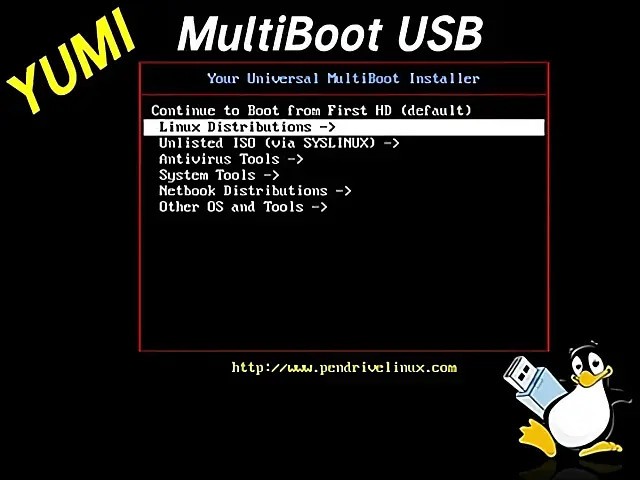
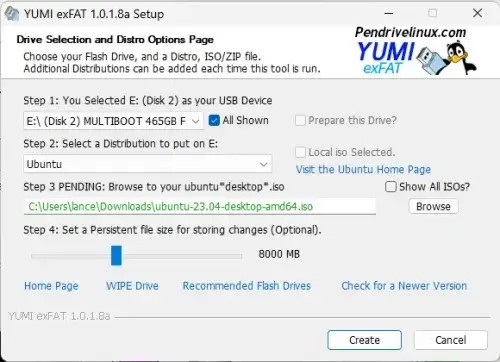
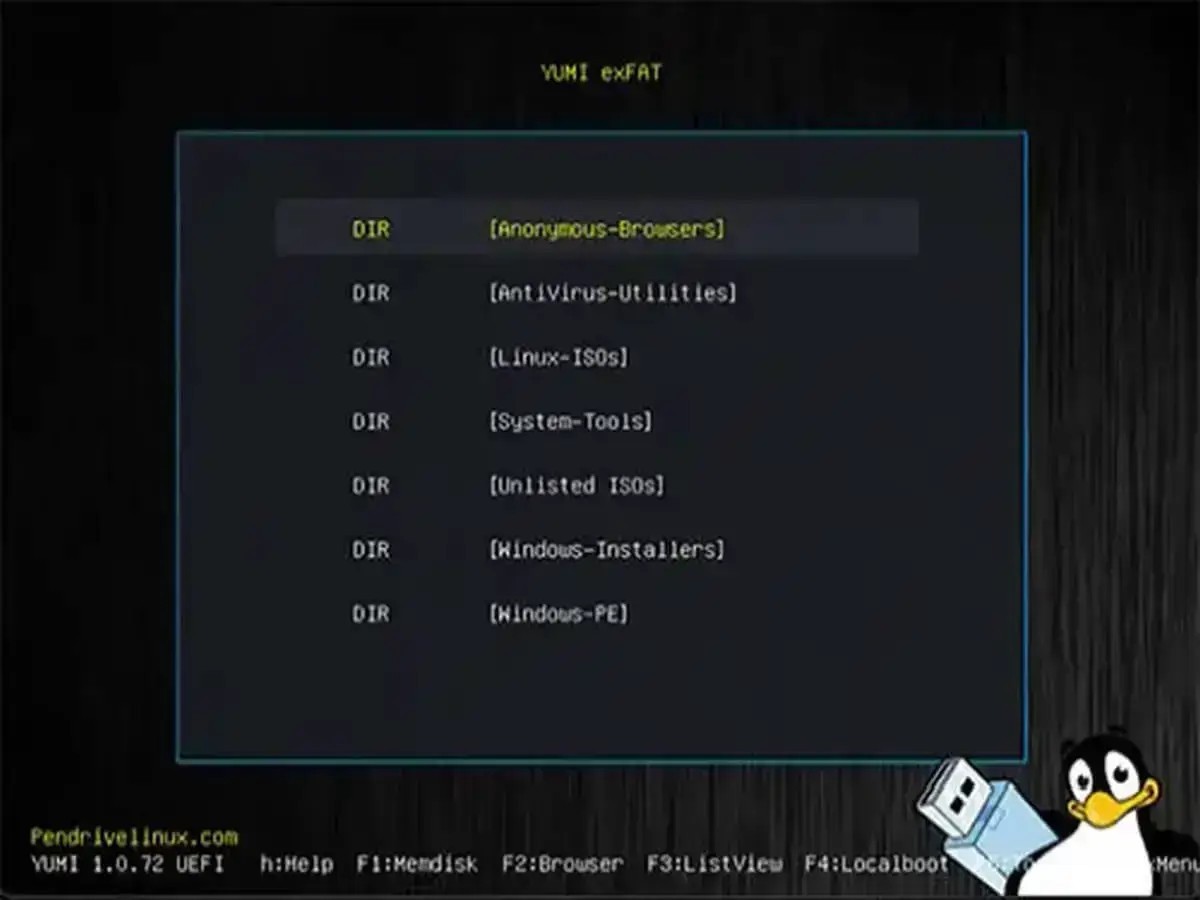
YUMI exFAT stands for Your Universal Multiboot Integrator with exFAT support. This free tool will help you keep multiple installers and operating systems on just one USB. People used to FAT32’s 4 GB limit will love the fact that exFAT support gets rid of that entirely, and you can now keep larger files on your drive. When you turn on your computer, you can choose the relevant bootable option from the utility’s startup menu.
Many people use YUMI exFAT for running Linux distributions at their convenience. The app can hold operating system installers along with system recovery tools on a single USB drive. You can also add new ISOs and tools whenever you like, without having to wipe the drive clean of other installers.
What Are the Key Features of YUMI exFAT?
YUMI exFAT uses the exFAT system to allow users to keep multiple operating systems, installers, utilities, and recovery tools on one USB drive. These tools can all exceed 4 GB—the size limit imposed by the FAT32 system—making the platform suitable for large Windows installers, ISOs, and more.
At its core, YUMI exFAT is a multiboot tool for operating systems and Linux distributions, installers, system recovery tools, and antivirus tools. The utility is compatible with legacy BIOS and UEFI systems, making it quite versatile. If you’re working with Linux, you can even save changes between reboots without fear of losing your work. Similarly, you can remove installers you no longer need without having to wipe the whole drive clean.
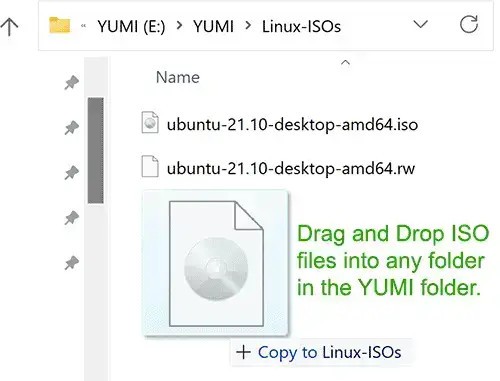
Files can be selected manually, and you can manage multiple files at a time through YUMI exFAT’s intuitive drag-and-drop interface. Bootable files can be grouped to make space for other files in your storage.
Is YUMI exFAT Free to Use?
Yes, YUMI exFAT is a free and open-source utility. You don’t need to pay any fees to use it. You will not encounter any paywalls or hidden fees.
Which Platforms Support YUMI exFAT?
YUMI exFAT is compatible with Windows, while YUMI Py is the native option for Linux, though it runs on Windows as well. Because YUMI exFAT was created for Windows devices, you will not encounter any issues while running the platform on a Windows computer. The tool is not available for macOS computers.
Bootable assets include legacy BIOS and UEFI systems. The program also provides support for Linux distributions, Windows installers, diagnostic tools, recovery tools, and more.
What Are the Best Alternatives to YUMI exFAT?
If you’d like to explore other multiboot integrators, you have a few to choose from. You may prefer an alternative over YUMI exFAT if you’re looking for a slightly different feature set or interface.
Ventoy is an alternative multiboot integrator that doesn’t have to be reformatted after each boot. The tool comes equipped with a startup menu that allows you to choose the installer or file you need right now. The compatible file formats include ISO, IMG, VHD (X), EFI, and WIM. All of these files will show up in the menu after they have been transferred onto the USB through Ventoy. If you need to move or delete a file, you can do so with ease without affecting the other files on the USB drive. There is always space for regular files on the drive too, so you don’t have to dedicate it to bootable files only. Ventoy is compatible with Windows installers, Linux distributions, ChromeOS, Xen, and other tools, including diagnostic and recovery tools. You can use the app on Windows and Linux computers.
Rufus is a free and open-source Windows utility for formatting USB drives. It is a lightweight tool that you don’t even need to install. Many people use it for installing operating systems or repairing problems in these systems on Windows and Linux distributions. You can create custom drives to run diagnostic or recovery tools. You can employ different file systems, including exFAT and FAT32.
PowerISO is a utility for creating bootable USB drives and managing disc image files. It supports files in the following formats: ISO, NRG, BIN, DMG, and DAA. The tool is most commonly used on Windows computers. With the help of PowerISO, you can browse through and run disc images via your drive without having to extract them. You can manipulate these files by editing, renaming, and deleting them too.