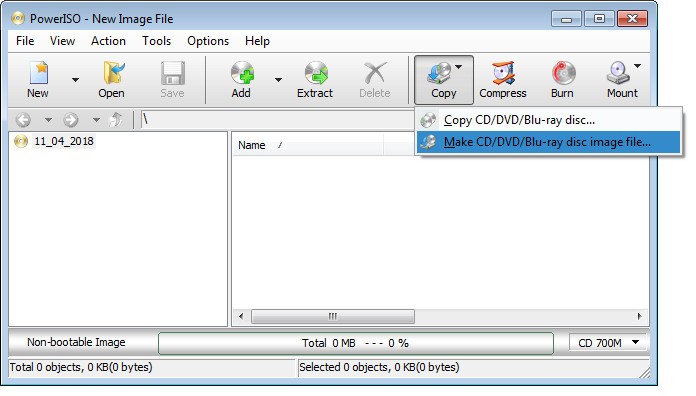
PowerISO is a disc imaging and file management application designed to handle ISO files, optical discs, archives, and bootable USB drives. It brings several utilities together in one program, making it useful if you regularly work with disc images, install operating systems, or need to access files stored in virtual discs. The application supports CD, DVD, and Blu-ray burning, as well as copying physical discs into image files. You can mount ISO images as virtual drives to browse their contents without extracting the files first. PowerISO also lets you create, edit, extract, and convert supported archive and disc image formats, giving you flexibility when working with different types of files.
Its USB tools are another important feature. You can create a bootable USB drive from an ISO file to install Windows, Linux, or another operating system. The software can also install Windows onto a USB drive, copy USB drives into image files, and write image files back to USB storage. Beyond disc and USB management, PowerISO includes audio CD ripping, music file format conversion, a graphical DISM tool, and a sector data viewer. These additional utilities make it more versatile than a dedicated disc burning application.
What Are the Key Features of PowerISO?
PowerISO offers a range of tools for managing disc images and removable storage. Its disc burning and imaging features let you burn data to CD, DVD, and Blu-ray discs, as well as copy physical discs into ISO and other image formats. This is useful for creating digital copies of optical media or preparing files for later use. The virtual drive feature allows you to mount ISO files and other supported disc images. Once mounted, an image behaves like a virtual disc, allowing you to browse its contents without extracting everything to a folder first. This can save time when you only need to access specific files.
PowerISO also supports archive and image file management. You can create, edit, extract, and convert supported formats, making it easier to work with different file types in one application. Its USB tools let you create bootable drives from ISO files, install Windows to a USB drive, copy USB storage into image files, and write images to USB devices. These functions are particularly useful when preparing installation media for Windows or Linux.
Additional features include ripping audio CDs into music files, converting music between supported formats, using a graphical DISM tool, and viewing sector data. Together, these tools make PowerISO useful for users who need more than basic ISO mounting or disc burning.
Is PowerISO Free to Use?
PowerISO offers a free, limited version, while the full version requires a paid license. The free version has restrictions, so check the official website for the current licensing terms and download options before deciding which version suits your needs.
Which Platforms Support PowerISO?
PowerISO is designed for Windows. You can find the latest version and system information on the official PowerISO website.
What Are the Best Alternatives to PowerISO?
Ventoy is a useful alternative if your main goal is creating bootable USB drives. Instead of formatting a USB drive every time you want to try a different operating system image, Ventoy lets you copy multiple ISO files onto the drive and select which one to boot when you start your computer. It supports a wide range of ISO images, making it convenient for users who regularly install operating systems or troubleshoot computers. Unlike PowerISO, Ventoy focuses primarily on bootable media rather than providing a broad collection of disc burning, archive management, and virtual drive tools. It's particularly appealing if you frequently work with several operating system installers.
Rufus is another option for creating bootable USB drives. This lightweight Windows utility helps you prepare USB installation media from ISO files, including Windows and Linux installers. Its straightforward interface makes it practical when you need to create a bootable drive quickly. Rufus also provides options for configuring how the drive is prepared, which can be useful when working with different systems or installation requirements. While PowerISO offers additional features for mounting disc images, managing archives, and burning optical media, Rufus is a strong choice if you mainly need a dedicated tool for making bootable USB drives.
YUMI exFAT is designed for users who want to build a multiboot USB drive containing several operating systems and utilities. You can use it to organize multiple bootable images on a single USB device, allowing you to choose which tool or installer to launch when booting. This makes it useful for technicians, system administrators, and anyone who regularly tests operating systems or carries troubleshooting utilities. Like Ventoy, YUMI exFAT concentrates on bootable USB functionality rather than trying to replace every PowerISO feature. If your priority is maintaining a versatile USB toolkit with multiple boot options, it offers a more specialized approach to the task.