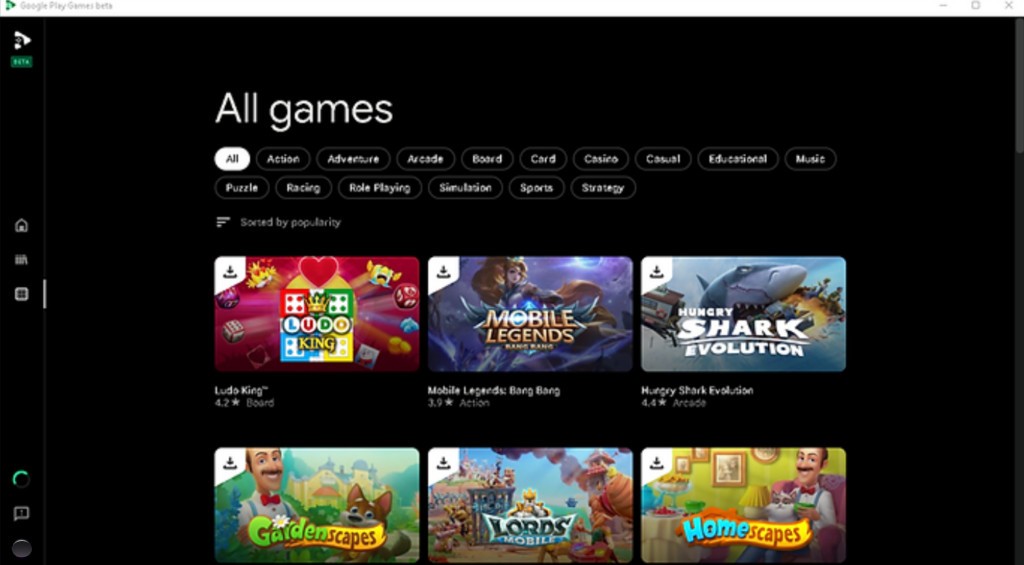
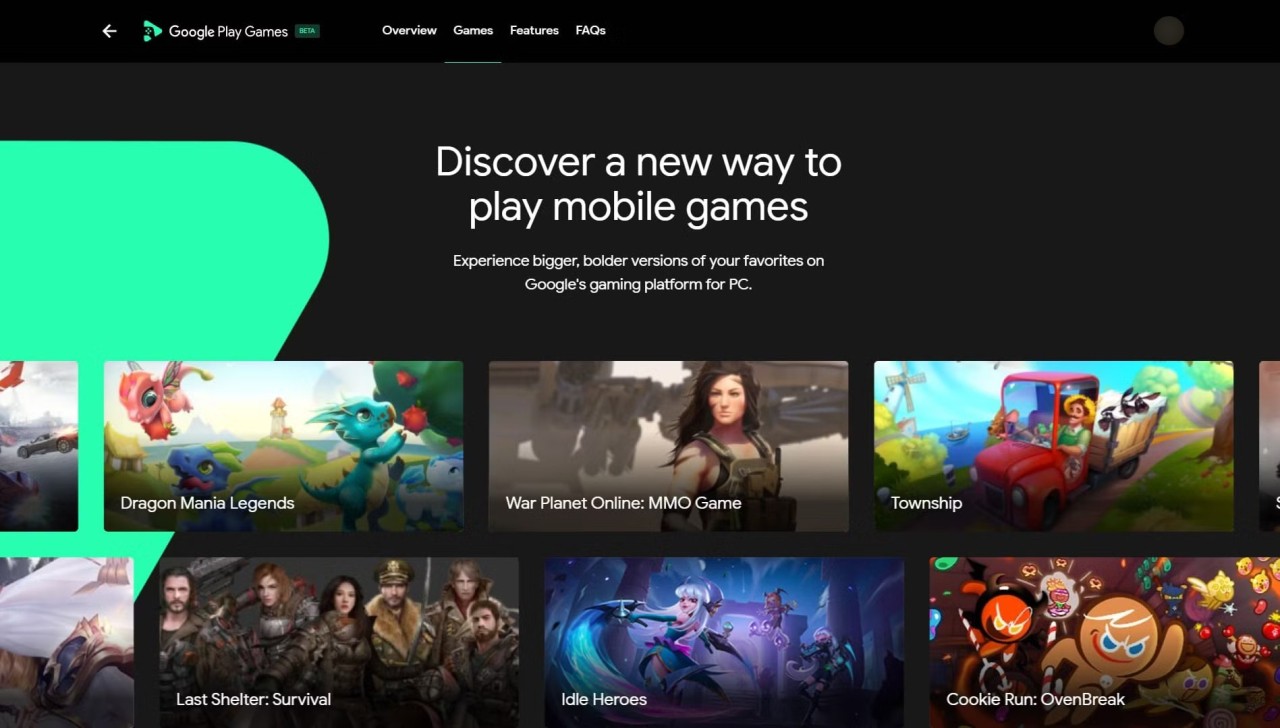
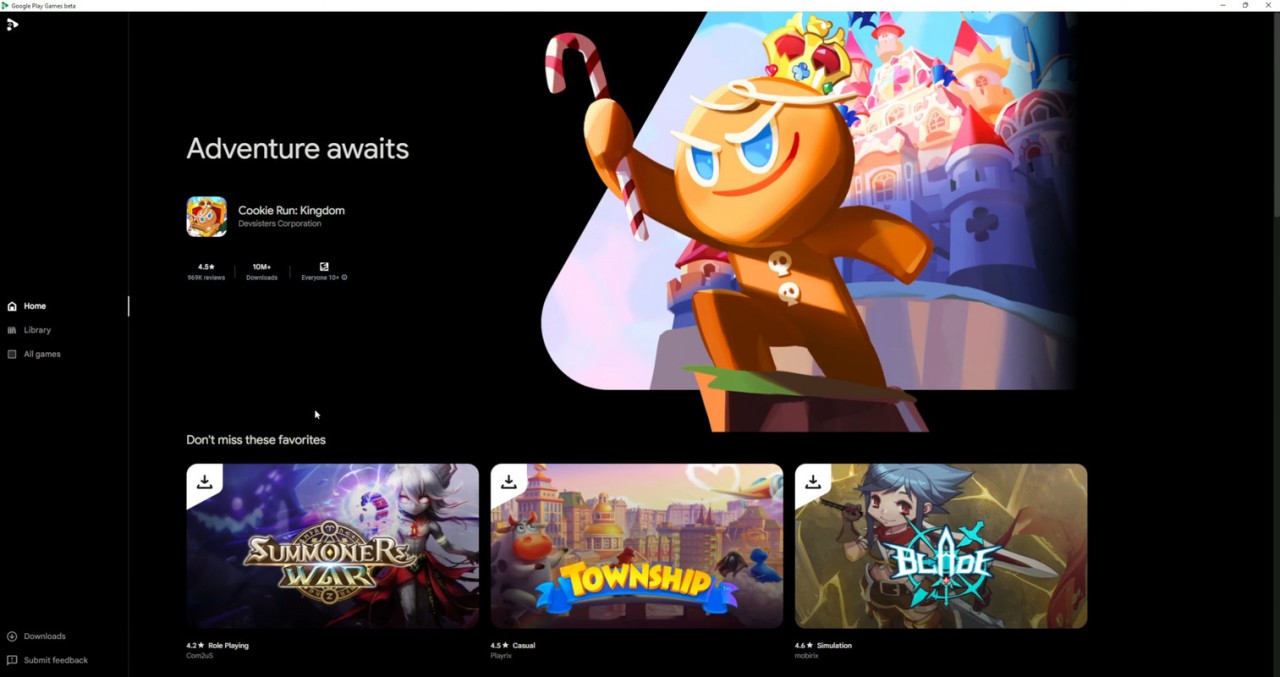
Google Play Games on PC offers a way to play Android games on a Windows computer. It does not attempt to imitate a phone screen or offer a multilayered emulator. The goal is simplicity. Sign in with your Google account, and your profile, games, achievements, and progress are transferred to any computer. You don’t need to search through file folders, deal with APK juggling, or face weird compatibility issues. It is identical to the Play Games that runs on Android, but this time with a mouse and keyboard, on a bigger screen.
The app attracts mobile gamers who desire a better and more stable experience. The service does not support productivity applications or random APK installations; it is exclusively for games. That’s what makes it stand out from third-party emulators. Instead of imitating Android OS on PC, it focuses on gaming. Since the app was created by Google, you can connect it to your account and see Play Points, stats, and progress. All the information remains centralized. It feels more like a shortcut than a traditional connection between your computer and phone.
What Are the Key Features of Google Play Games?
Seamless sync is the most significant characteristic. You can play a game on your phone and resume it on Windows 11 without losing progress. Everything is stored in your Google account: your accomplishments, saved information, and rewards. This cannot be achieved with the help of most third-party emulators. It’s like picking up where you left off, just on a different screen.
The library is another important factor. It is connected to the Play Store, which means that the list of supported games is not restricted to a few fan favorites. The games can be operated on touchscreen interfaces or with a keyboard and mouse. Playing doesn’t require a complex setup.
Play Points add extra value. Get points through playing and redeem them for perks, in-game boosts, or discounts. Since your account is cross-platform, your rewards stay with you.
All your statistics, streaks, and achievements are located in the You tab, so everything is organized. Gemini Live has the Sidekick feature, which displays achievements and tips in real-time as you play. That minimizes the use of Alt-Tab. The whole system is smooth and keeps gaming simple.
Is Google Play Games Free to Use?
Yes, the platform is free. No subscriptions, licensing fees, or secret charges. Get it, register, and start playing without paying anything. Individual games may have in-app purchases or premium versions, but the app’s service is free.
Which Platforms Support Google Play Games?
The app runs on Windows, and it does especially well on Windows 11. It works on some Windows 10 machines if they meet the requirements, but not on macOS or Linux. The focus on Windows is intentional; it supports the modern virtualization tech that only newer Windows computers can handle well.
To operate it correctly, your PC needs to meet some requirements. Google recommends a solid-state drive with at least 10 GB of free space, Intel UHD Graphics 630 or better, 8 GB RAM or more, and four physical CPU cores. Make sure virtualization is turned on in the BIOS, and you’ve got administrator rights to be able to install the software.
These requirements are more stringent than those of certain other third-party emulators, but they ensure better performance and stability. Once the requirements are fulfilled, the experience is much smoother. The result is not a small Android tablet on a laptop; rather, it is a clean cut in between your phone and your PC. The limited focus will render it more trustworthy to users who can meet the conditions.
What Are the Best Alternatives to Google Play Games?
Google Play Games is a great tool; however, there are several users who prefer other programs for different reasons.
GameLoop is an alternative that focuses on performance. It is made for major games, including PUBG Mobile and Call of Duty: Mobile. It does not support cloud sync or profile integration; however, its optimization with a keyboard and mouse is outstanding. Players who play frequently use it for easier controls and less input lag. It is intuitive and easy to use.
BlueStacks is another option that provides the complete Android experience on a personal computer. It allows you to use applications and games as if your PC were a phone. At the same time, it is more resource-intensive and could require further tuning. If you need a tool that is not for games only, or want to run more than two applications at once or test software, BlueStacks can be the right choice.
Then there’s NoxPlayer. It is somewhere between BlueStacks and GameLoop. It is not specifically for gaming and it is lighter than BlueStacks. It provides a high level of control over settings and allows you to start multiple sessions at once. That’s the reason it’s popular with users who like trying various configurations or playing multiple games at the same time.