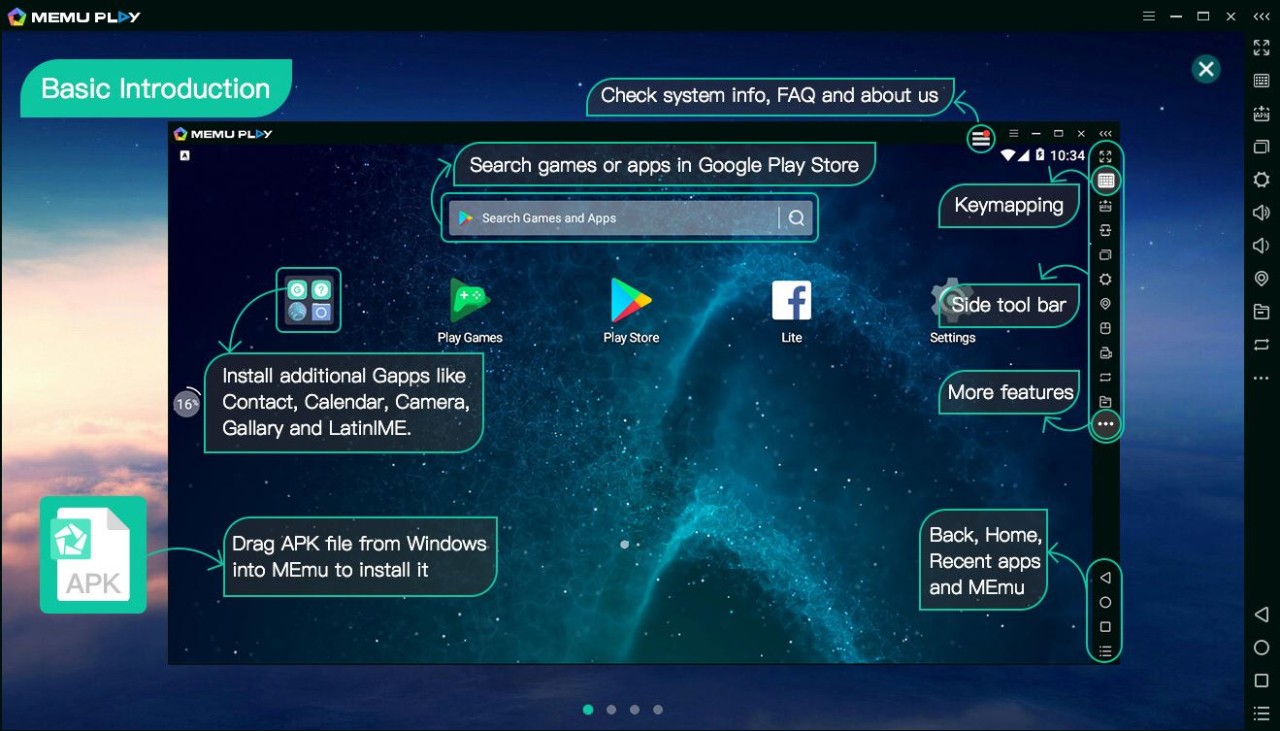
MEmu Play is an emulated version of Android that allows running mobile apps and games on a computer. You can easily recreate the Android feel on a bigger display instead of tapping on a small phone screen. That’s what makes the app popular.
It’s not just for gamers. It is used by developers to test apps. Some people like it because they prefer working on a desktop, as it feels more stable and comfortable. If you’ve ever tried to play a game or use an app on a hot day or battery-drained phone, switching to a PC emulator is a game-changer.
MEmu isn’t a new tool. It is among the most recognizable emulators, with over 100 million downloads across over 200 countries. It comes in many languages, so anyone around the world can use it without having to deal with settings they don’t understand.
Its difference lies in the fact that it supports several Android kernels. Simply put, you can run different Android versions or even multiple emulator windows at once. As an example, a game can be run in one window, a messaging application can be used in a different window, and a third window can have a different task running. It keeps things simple with its uncluttered interface, which is why it became popular so quickly.
What Are the Key Features of MEmu Play?
The first thing that people notice is performance. Most emulators are sluggish, particularly on ordinary laptops. MEmu remains stable even on mid-range hardware. It also does not demand the most current hardware, which is a major factor for many users.
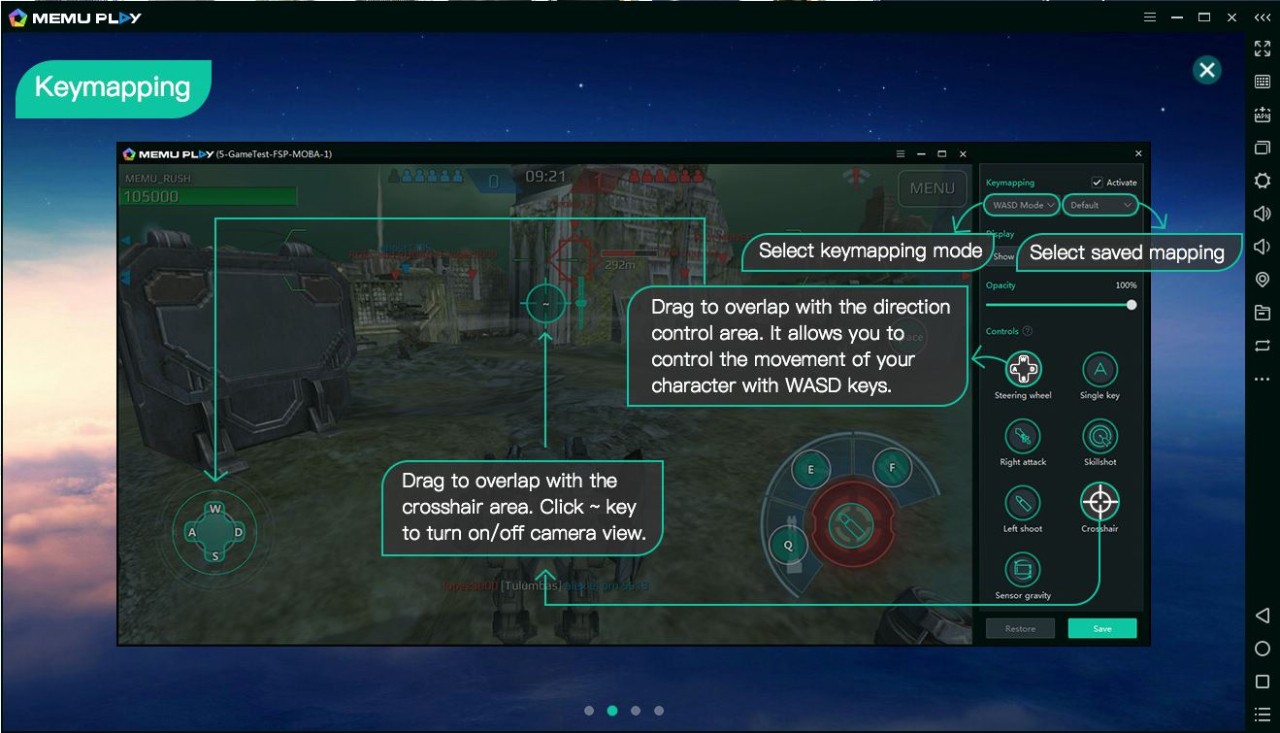
Gamers are fond of keyboard mapping. You don’t have to pretend the mouse is your finger; you map movement, shooting, and other controls to your keyboard, so it feels natural. Multi-instance support enables you to open multiple emulators. It comes in handy when you’re farming in one game, testing in another, and chatting in a third. This gives MEmu a competitive advantage over the more basic tools.
The emulator supports Intel and AMD processors, unlike older emulators that only worked with one type of CPU. It is also possible to change application versions if they require a particular environment.
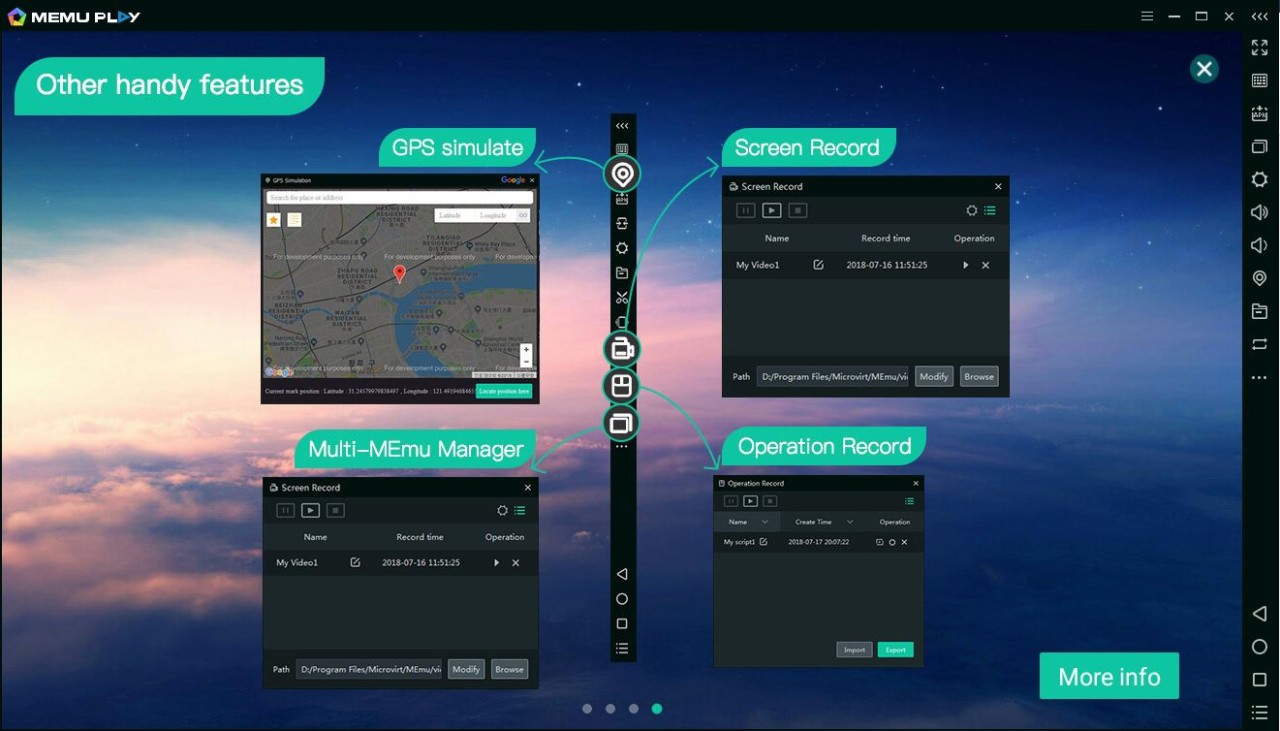
File sharing between your PC and the emulator is built in, making data transfer an easy task. You can also screen record when you stream or want to save clips of gameplay. It is compatible with gamepads and external controllers, too.
The most advantageous thing is that you do not need to apply advanced settings. Performance can be adjusted to your preference, including resolution, framerate, RAM, etc., although the default settings are fine. This setup works for both beginners and users who like tweaking things in detail.
Is MEmu Play Free to Use?
Yes. You do not need a license or paid plan. Download, install, and start. There may be some ads, but none of the features are locked behind a paywall. That is part of the reason MEmu Play continues to attract attention—you get everything you need for free.
Which Platforms Support MEmu Play?
MEmu Play supports Windows 7, 8, 10, and 11. You do not need a supercomputer, but just a laptop with a medium processor and some memory. Higher-quality hardware will provide more fluid performance, particularly on a large scale or with graphics-intensive games.
No official version for macOS is available at the moment, which creates a limitation for Mac users. For Windows users, installation is simple: just download the installer, follow the steps, and you’re in. It feels like a regular Android device running on your PC screen.
Sign in using your Google account, get to the Play Store, and install applications and sideload APKs at will. You don’t need to worry about compatibility because it can support both Intel and AMD processors.
MEmu is versatile; it can be used on gaming desktops, regular laptops, or office computers. Its capability to support multiple windows allows it to capitalize on more powerful hardware, but not everybody needs that.
What Are the Best Alternatives to MEmu Play?
Most people know BlueStacks, and it’s often mentioned in conversation about Android emulators. It is stable and reliable, has a clean interface, and includes features such as keyboard mapping, controller support, and multi-instance. It is updated regularly to support Android. It is heavier than MEmu in larger systems, but it can make a good machine feel like a console.
Another popular option is NoxPlayer. It is light, easy, and quick, and does not overwhelm users with additional features. Resolution, performance, and controls are easily adjusted. Similar to MEmu, it can be used with multiple instances, so multitasking is not an issue. It is a good choice for people looking for something fast and uncomplicated.
MSI App Player is an alliance between MSI and BlueStacks. It is specifically designed to support MSI gaming hardware, though it can be used with other Windows systems. It is quick, reliable, and easy to use. The interface resembles that of BlueStacks, so the transition will be smooth if you have experience with BlueStacks. MSI laptop users are usually delighted to see that it works better without any additional adjustments.