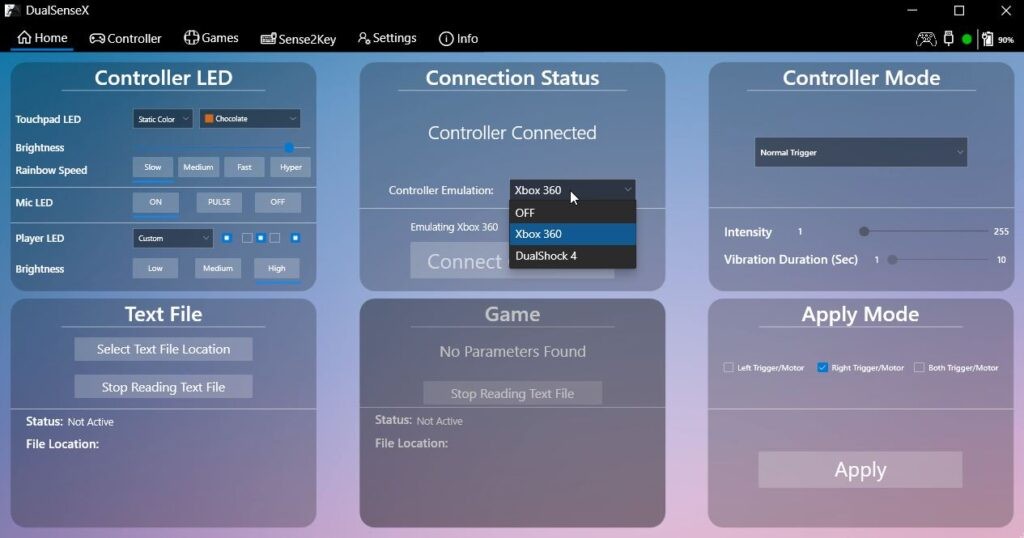
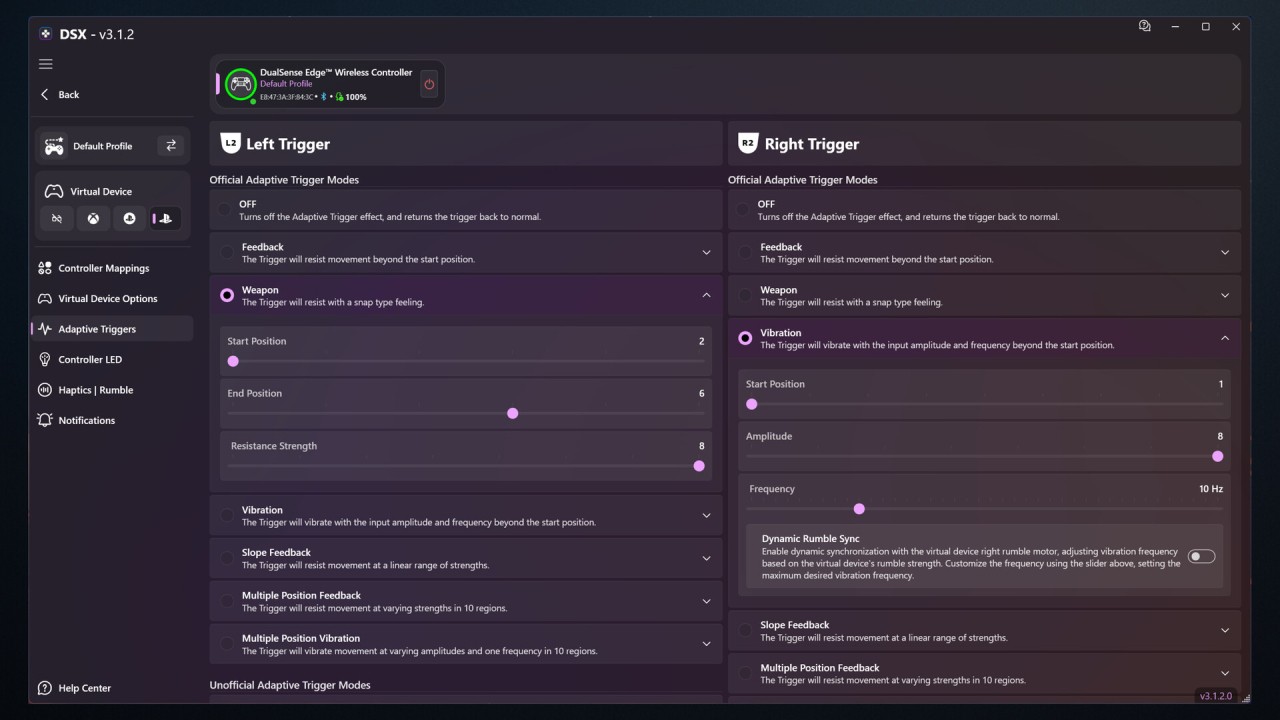
DualSenseX is a Windows utility designed to expand what you can do with a PlayStation 5 DualSense controller on a PC. Although Windows can recognize the controller, not every game supports all its features. DualSenseX adds configuration options for the adaptive triggers, haptic feedback, lighting, and input mapping, giving you more control over how the controller behaves.
One of its main advantages is the ability to emulate other controller types. You can configure the software to present your physical DualSense as an Xbox or DualShock 4 controller, which can help with games that don't recognize the PS5 gamepad properly. You can also map controller buttons to keyboard and mouse inputs, making it possible to play certain games that don't offer native controller support.
Beyond input mapping, DualSenseX includes tools for testing buttons and joysticks, checking controller status, adjusting RGB lighting, and experimenting with trigger resistance and vibration. It can also integrate audio with haptic feedback, adding another layer of physical response in compatible setups. The application is intended for Windows 10 and Windows 11, and it supports connecting a DualSense controller over USB or Bluetooth.
What Are the Key Features of DualSenseX?
DualSenseX offers several ways to customize how your controller responds. Its adaptive trigger settings let you experiment with different resistance effects, while haptic options provide more detailed vibration feedback than standard rumble. You can also adjust the controller's RGB lighting and colors to match your gaming setup. Audio-to-haptic functionality adds another option, translating audio into controller feedback where supported.
Controller emulation is another central feature. You can configure the physical DualSense to behave like an Xbox 360 or DualShock 4 controller, helping games that expect a different input device recognize your controls. If a game doesn't support controllers at all, you can map buttons to keyboard and mouse inputs instead. You can save or download profiles for particular games, making it easier to switch between control schemes without rebuilding each configuration from scratch.
The built-in testing tools help you check whether the controller's buttons and joysticks register correctly. You can also view button presses and controller information, including battery status. Other conveniences include startup options, shortcuts, different interface themes, and support for multiple languages. Some features depend on the connection type: for example, the software's headphone-jack audio support requires a USB connection.
DualSenseX may also need additional drivers to enable virtual controller emulation and avoid conflicts with other input tools. Follow the current installation instructions and check which dependencies are included in your version before adding drivers separately.
Is DualSenseX Free to Use?
DualSenseX has a free legacy version, but it no longer receives updates or the latest features. The current paid version is available through Steam under the name DSX. It receives ongoing updates and includes newer functionality, with some advanced capabilities, such as virtual DualSense support and Bluetooth audio and haptics, offered through the separate DSX+ add-on.
If you only need basic controller customization, the older free version may be sufficient. For newer features and continued development, you'll need to consider the paid version and any additional content you want.
Which Platforms Support DualSenseX?
DualSenseX is designed for Windows 10 and Windows 11 PCs. It works with a PlayStation 5 DualSense controller connected through USB or Bluetooth, although certain functions are connection-dependent. The software may also require the appropriate .NET runtime and virtual controller drivers, depending on the version and features you use.
What Are the Best Alternatives to DualSenseX?
reWASD is a powerful alternative if you want extensive control over controller mappings. It lets you assign gamepad buttons to keyboard and mouse inputs, create custom layouts, configure combinations, and emulate supported controller types. Its broader device support makes it useful beyond the PS5 DualSense, although its feature set is split across paid options. A free trial is available, but continued access to the full functionality requires a license.
InputMapper is another option for configuring controllers on Windows. It has traditionally focused on mapping PlayStation controllers to PC-compatible inputs, including virtual controller emulation and custom profiles. However, its development and current compatibility are less clear than those of some alternatives, so check its latest available release before relying on it for a modern DualSense setup.
DS4Windows is a free, open-source controller mapper for Windows that supports PlayStation controllers, including the DualSense. It can emulate virtual controllers, remap inputs, and create profiles for different games. Its newer development versions also offer advanced haptics and adaptive-trigger configuration, though specific features depend on the controller, software version, and game. It's a strong choice if you want a feature-rich alternative without paying for the core application.