Step 2: Set screenshot and video formats correctly
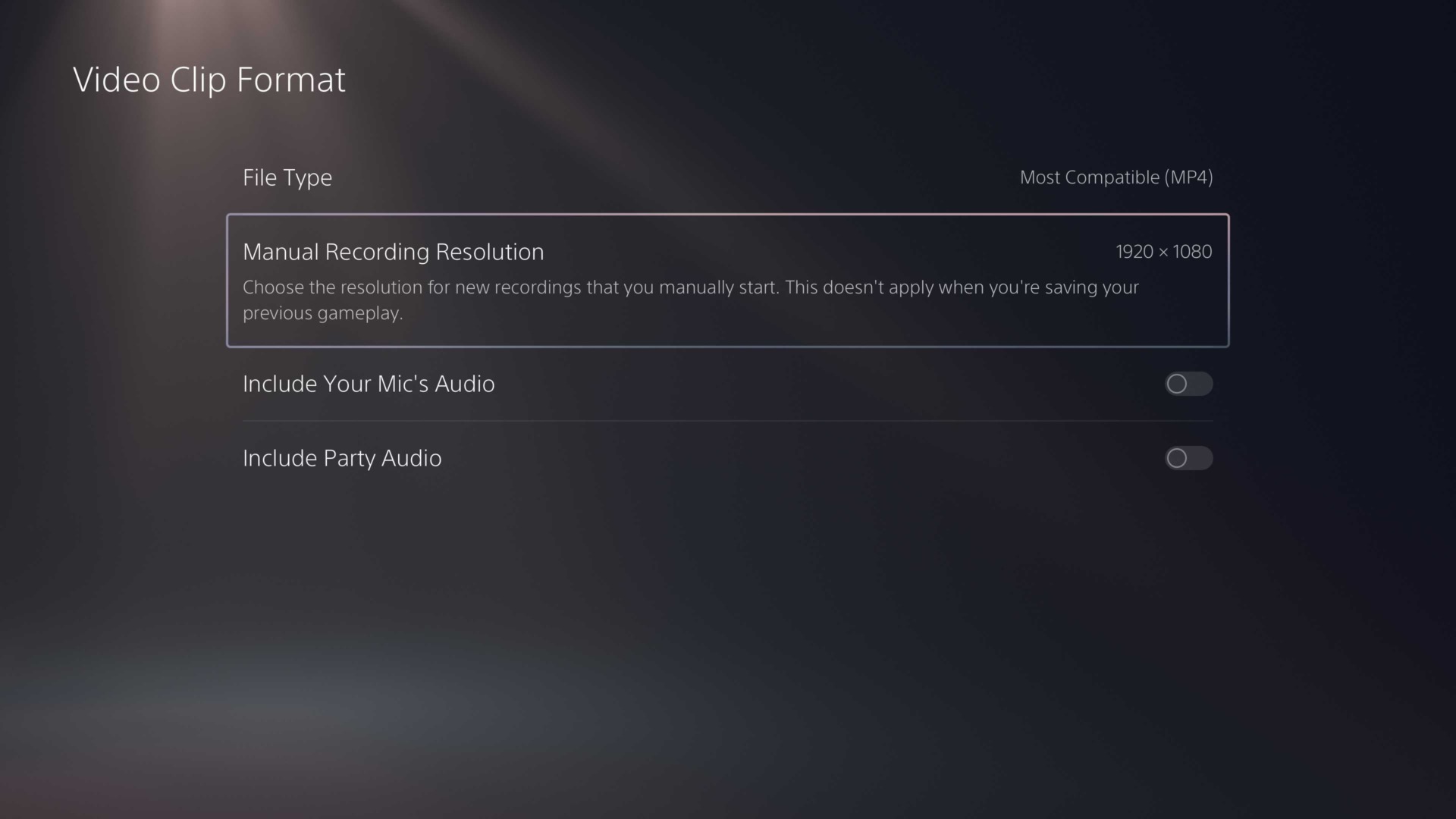
Select the gear icon on the home screen of your PS5 and navigate to Captures and Broadcasts. Under Captures, select “Screenshot Format” and change the setting from JPG to PNG. Note that this will result in larger screenshots. The tradeoff, however, is that they are higher quality and you can always change a PNG to a JPG with image editing software on a computer.
Once you’ve changed your screenshot settings, select “Video Clip Format” and change the file type to “MP4” instead of WebM. Like with the PNGs, this will result in larger files, but the compatibility and quality will be worth it. Additionally, you can select between 1920 x 1080 resolution and 3840 x 2160. Note that the latter will only work with WebM videos. On this same screen, you should turn off “Include Your Mic’s Audio” and “Include Party’s Audio.”