Step 1: Turn off notifications
Before we even touch any video or screenshot setting, we need to make sure our footage will be free of any unwanted banners or sounds from a notification. Depending on how much you rely on notifications, you may want to tailor these settings. Ultimately the best setup for reliable, undisturbed capture is to turn as many of them off as possible.
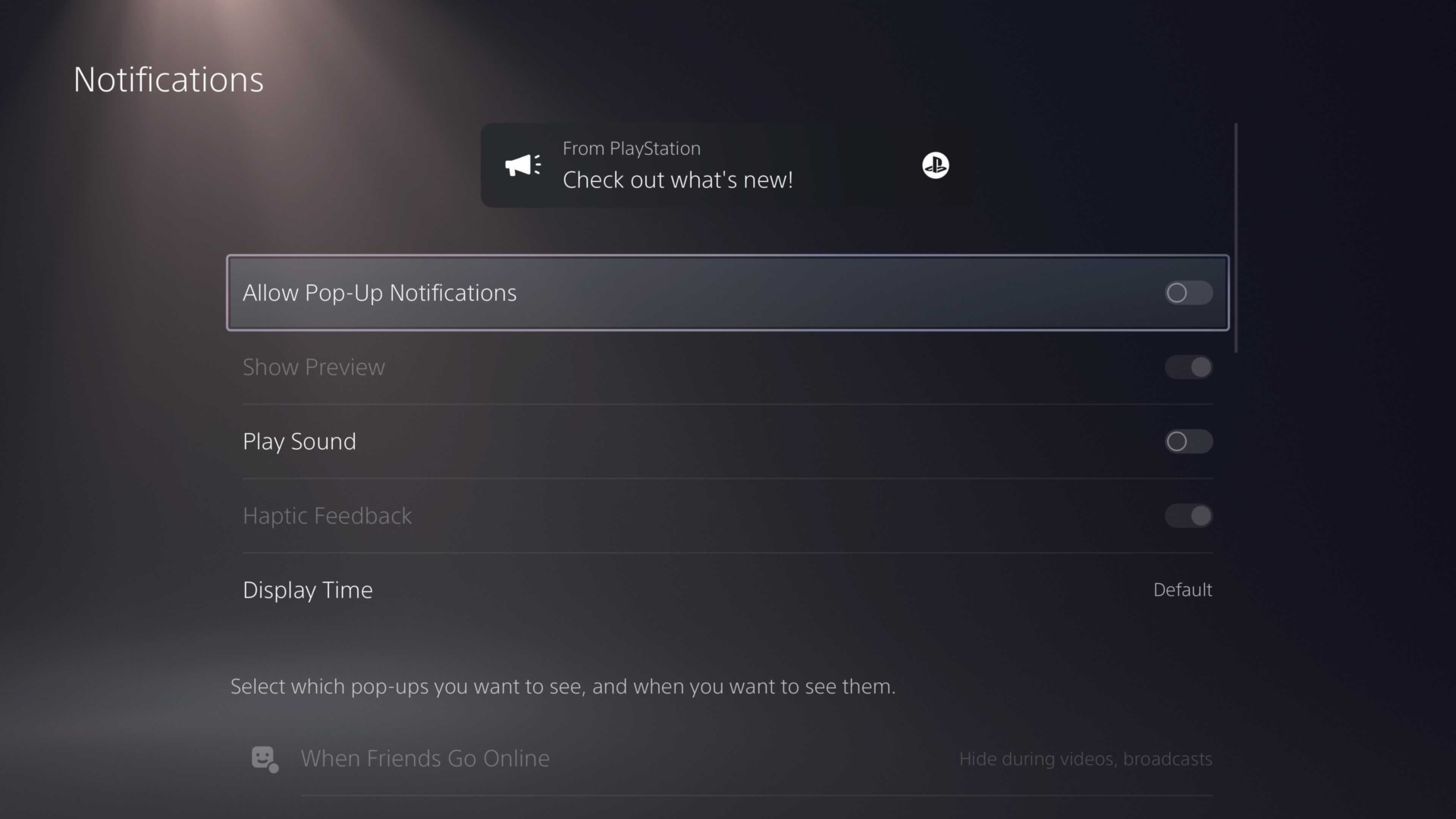
Select the gear icon on your PS5’s home screen and navigate Notifications. We recommend turning off “Allow Pop-Up Notifications” and “Play Sound,” but be aware:This is a nuclear option that’ll keep your PS5 from notifying you about anything. This includes notifications about friends signing on, messaging you, sending you friend requests, etc.
If you leave “Allow Pop-Up Notifications” on, you can toggle which notifications you want to see and at what point. Keep in mind: The more notifications you have turned on, the more likely it is you’ll potentially end up with an unwanted notification pop up in a screenshot or video.