Other settings and considerations
If you’re recording with an external capture device, we recommend turning off the system sounds such as the shutter sound effect when snagging a screenshot. Navigate to “Sound” in the settings menu, select “Audio Output” and scroll down to “General.” Here you can turn off “Sound Effects.”
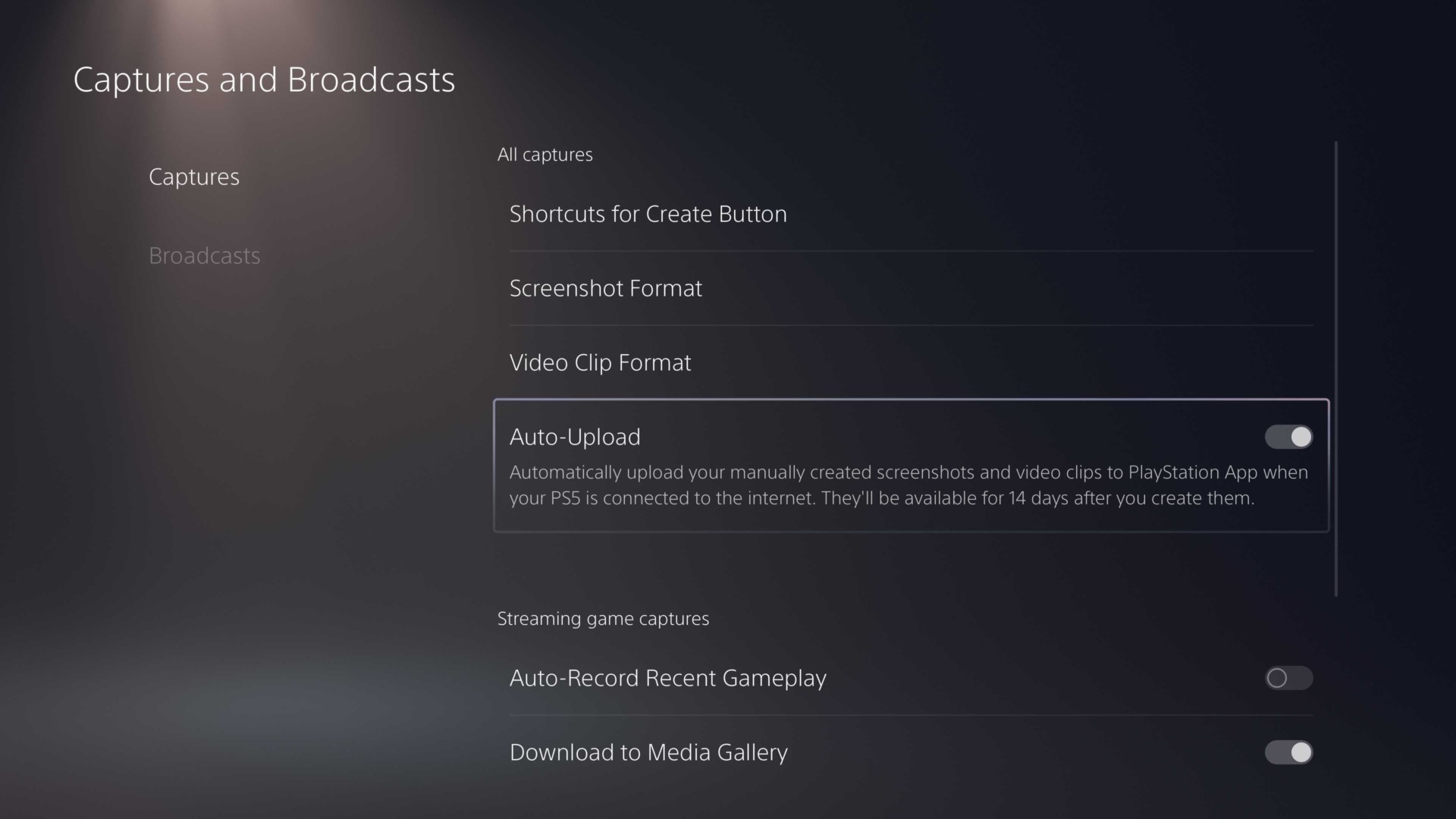
If you’re planning to export your captures frequently, you may also want to leave “Auto-Upload” on in the “Captures and Broadcasts” settings menu. Uploads will be available on the PlayStation App for 14 days at a time if you have this turned on.
Finally, you may wish to toggle the settings for “Auto-captures” at the bottom of the “Captures” area of the “Captures and Broadcasts” menu screen. When both “Trophies” and “Challenges” are turned on, your PS5 will automatically grab a screenshot and/or video of the moment you earned a Trophy or finished a Challenge. While this can be a nice feature, these screenshots and videos can add up over time, so turn these on or off at your discretion. Also, automatic Trophy screenshots feature a banner on them with info about the Trophy.
The PS5 is both an incredibly powerful game console and a fantastic capture device. These settings will enable you to store clean, high-resolution captures to document your gaming journey or create entertaining content.