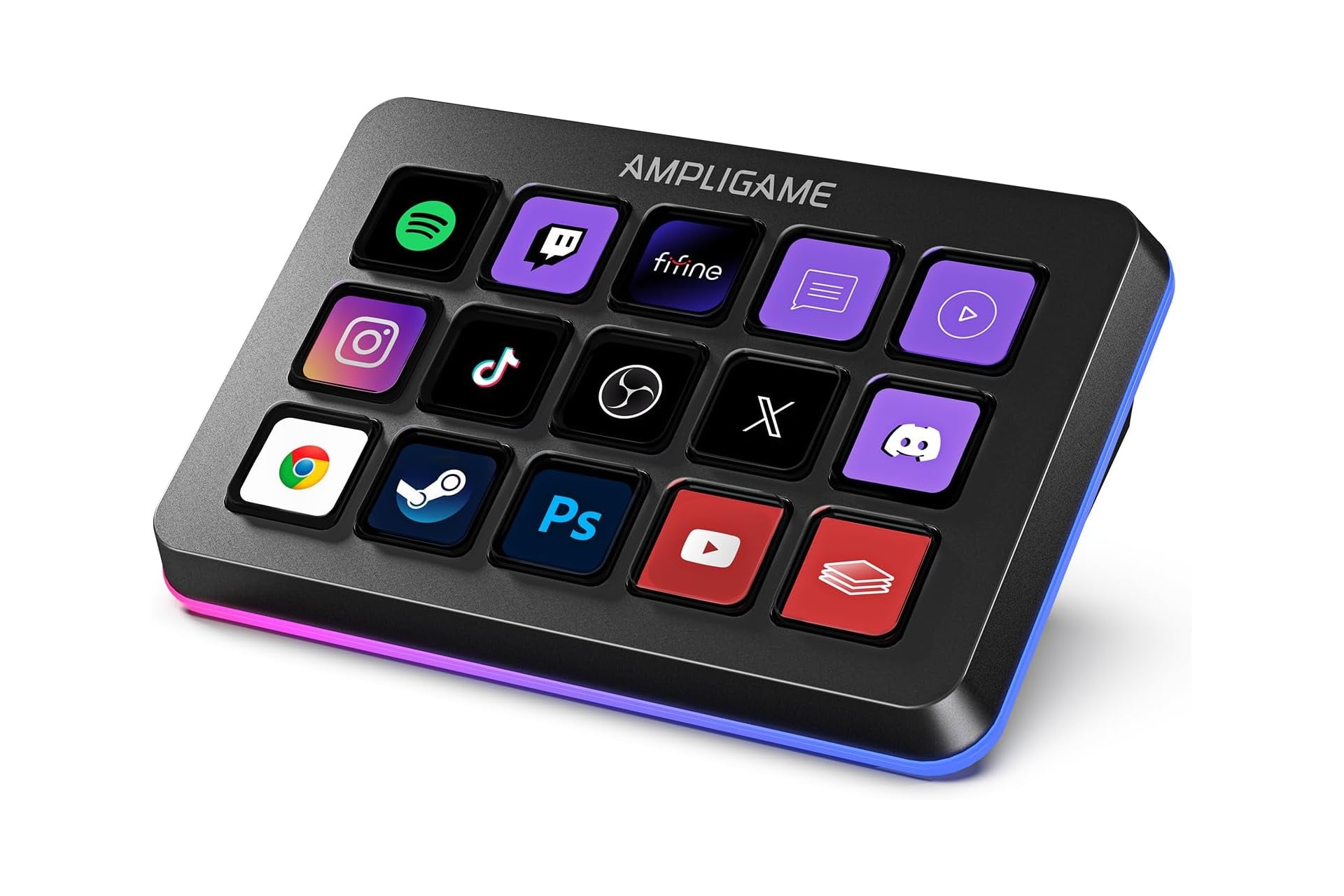
If you’re getting into Streaming on Twitch, YouTube, or some other platform and you’re ready to start investing into your production, one of the first things worth considering after acquiring a solid microphone and webcam is a stream controller. Having a series of macros right at the ready can allow for smoother transitions and settings adjustments on the the fly. They’re not too pricy, either. The AmpliGame Stream controller is a great alternative to Stream Deck, and right now, Amazon happens to have it on sale for 15% off. That takes the price down from $65 to just $55, saving you $10 for a limited time.
What’s possible with a stream controller is kind of limitless. This one by AmpliGame has 15 different buttons which can be set to a variety of operations.
One of the simplest functions you can use a stream controller for is the quick-launch of frequently used apps or websites. You can set a button to open up Spotify, Twitch, Steam, Photoshop—you name it.
Wide Application Compatibility
The most common use for streamers using a stream controller is to control aspects of the stream. You can connect your AmpliGame stream controller with OBS Studio or Streamlabs which can then be used to change settings within your streaming application. Use it to adjust audio levels and more. I use my stream controller to be able to easily jump between the different scenes I have pre-constructed for the stream. You can even set multiple macros to play in succession. One of the functions I use allows me to play a short video before moving to a particular scene. During the transition, it cuts out my mic audio as well as my desktop audio for folks on the call with me, then it plays the video, then turns back on all of our audio so we can continue talking. It does that all with one button press.
Another fun application for the stream controller is to configure it with an RGB effects you have across your PC setup. You can also control the glowing RGB ring around the stream controller itself with nine different controllable and changeable modes.
No matter the function you assign to the button, you can add a customized image that reflects what the action does. There are a series of pre-loaded icons for commonly used functions or you can add in your own. Once you have the functions you want setup, you can easily drag and drop them around to organize them in whichever way makes best sense for your workflow.